
Here’s how to fix it:
-
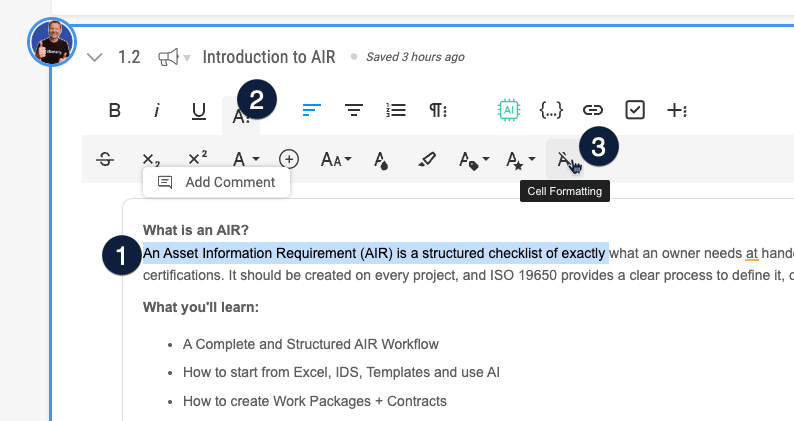
Open the section and highlight the affected text
-
Go to the section in your Plannerly document where the formatting looks off.
-
Select the text or paragraph that looks different (for example, wrong font, size, or spacing).
-
-
Select the More Text tool and clear the formatting
-
In the toolbar, click the More Text button.
-
Select the Cell Formatting option.
(See the numbers in the image below for reference)
-
Reapply your preferred styles
-
Once cleared, you can reapply headings, bold text, lists, or other styles using the toolbar.
Tip
If you pasted text from another source:
-
Try using Paste as plain text (Ctrl+Shift+V or Cmd+Shift+V) to avoid importing unwanted styles.
-
After clearing formatting, re-export your PDF to confirm the section now appears consistent.
Clearing formatting removes hidden inline styles that can cause layout or export issues. It is a quick way to ensure your document prints cleanly and matches your project style settings.