1. Switch the Section to Landscape Mode
If your table is wide, switching the page orientation for that specific section can immediately give you more space.
How to Change Page Orientation
-
Click the three-dot menu on the section.
-
Select Change Portrait / Landscape. The section must be In Progress.

Important: Orientation applies only to the section you change - not the entire document.
2. Check the Layout in the Export Preview
After switching to portrait or landscape, you may want to confirm which orientation the section is now using.
How to View the Page Layout
-
In Docs, select Export, then Create Document. The document builder opens.
-
Select Add part and choose your document. The live preview shows the real pages, including orientation, as they will export. For a long document it shows the first part only. Nothing is saved until you select Create.
This makes it much easier to judge whether your table fits.
3. Reduce Table Width or Font Size (If Needed)
If landscape mode still isn’t enough:
-
Narrow column widths.
-
Shorten long text inside cells.
-
Reduce the font size in the section.
These small tweaks can prevent overflow when exporting.
4. Clear Formatting (If the Table Layout Looks Off)
Sometimes hidden styles from pasted content make tables behave unpredictably.
To clear formatting:
-
Highlight the affected table or text.
-
Click the More Text menu.
-
Choose Clear Formatting.
This resets everything to clean Plannerly styling.
5. Preview Before You Export
Always check the live preview in the document builder first.
This helps your exported PDF look the way you expect. A Word copy is made from that PDF, so give it a quick check too.
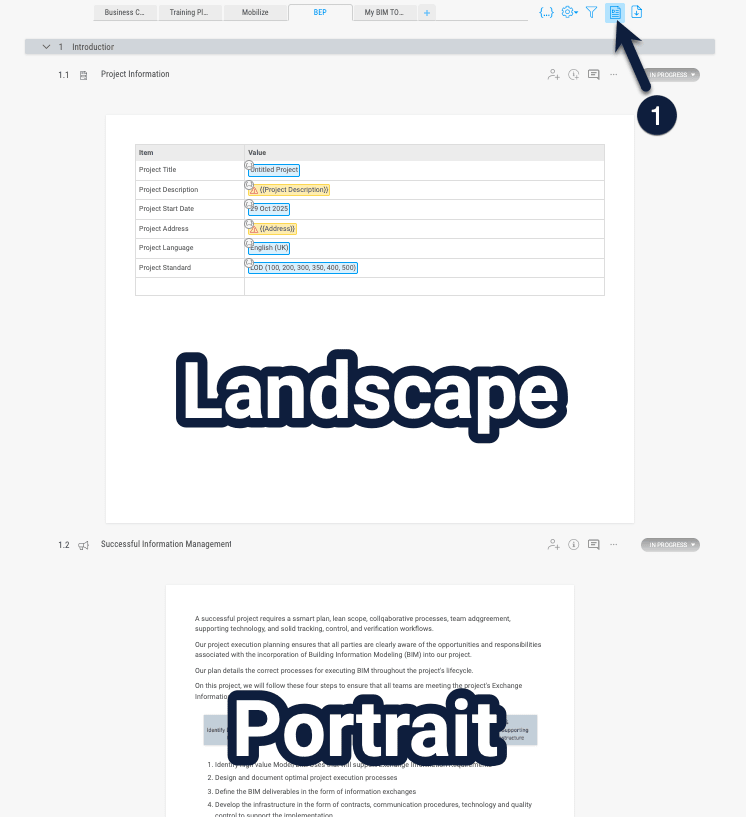
Example: Table in Landscape Mode
Below is what a landscape-oriented section looks like on the page:
Summary
If your tables are overflowing the page during export, try:
-
Switching the section to Landscape
-
Using the live preview in the document builder to confirm orientation
-
Adjusting table width and font size
-
Clearing formatting if needed
These simple steps will keep your exported documents clean, readable, and neatly formatted.