1. Typo or Mismatch in the Parameter Name
One of the most common issues is a mismatch between the parameter name in the model and the information requirement name in Plannerly. This mismatch may be very subtle - even a single whitespace can break the link.
Best Practice: Use the Browser Search
To verify an exact match:
- Open the model property window.
- Copy the parameter name directly from there.
- Use the browser’s search function (Ctrl+F or Cmd+F) within the Information Requirements.
- Paste the parameter name and search for a 100% match.
Note: Even with search, hidden whitespaces may still cause a mismatch. Perform this step in reverse as well: copy the information requirement name and search among the model parameters. Be sure to check for trailing spaces.
2. Parameter Required in a Specific Group / Pset / Category
Sometimes, the information requirement specifies that the parameter must be located within a particular group or property set (Pset). Plannerly will only accept the parameter if it is located in that specified group.
How to Check
- Review the information requirement to see if a group, Pset, or category is defined.
- If a group is defined, the parameter must be inside that group.
- If no group is specified, Plannerly accepts matching parameters from any group. In case of multiple parameters with the same name, the first match will be linked and investigated.
Action: Double-check both the model parameter location and the group setting inside the information requirement.
3. The Parameter Is on a Different Hierarchy Level
Plannerly searches for parameters at the lowest hierarchy level of the element tree structure by default. However, in some models - especially in assembly and component structures (for example door - frame - handle - panel or sink - faucet relationships) - the parameter may be stored on the parent assembly instead of the individual element.
Solution: Search Higher Hierarchy Levels
Plannerly provides a setting to look for properties on higher levels of the model hierarchy.
To activate this:
- In the Verify module, open the Task Link Settings dialog.
- Click the chain link icon of the relevant element or task.
- Locate and uncheck the Link Leaf Elements checkbox to enable property lookup on higher hierarchy levels.
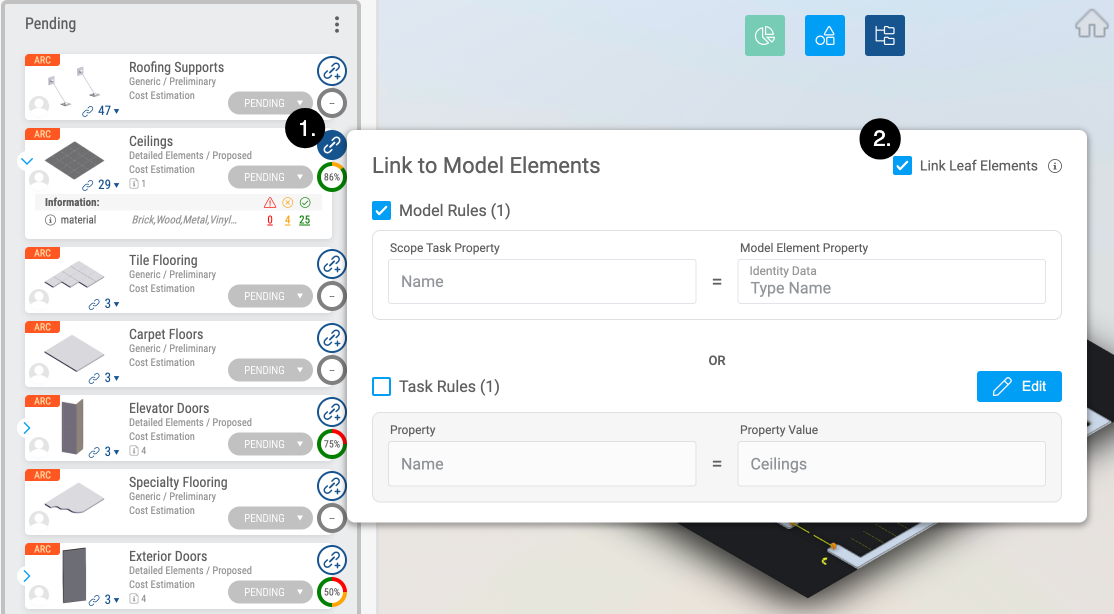
This helps capture parameters stored at the assembly level instead of the element level.