
TL;DR - Open your profile menu, choose API keys, select New key, name it after what will use it, set an expiry and choose the access it needs (Read-only is plenty for a dashboard). Select Create key and copy the token straight away - it is shown only once.
Who this is for
Any signed-in person whose account is entitled to the API (not available on the Free plan unless your account is entitled). A key only reaches what your own role allows.
Why it matters
Connecting Plannerly to a dashboard should never mean sharing a password on a sticky note. A key is separate from your login, has an expiry, can be limited to read-only and can be revoked at any time.
Create a key
- Select your name to open your menu, then choose API keys.
- Select New key. A Create API key window opens: "Name it, set an expiry, and grant only the access it needs."
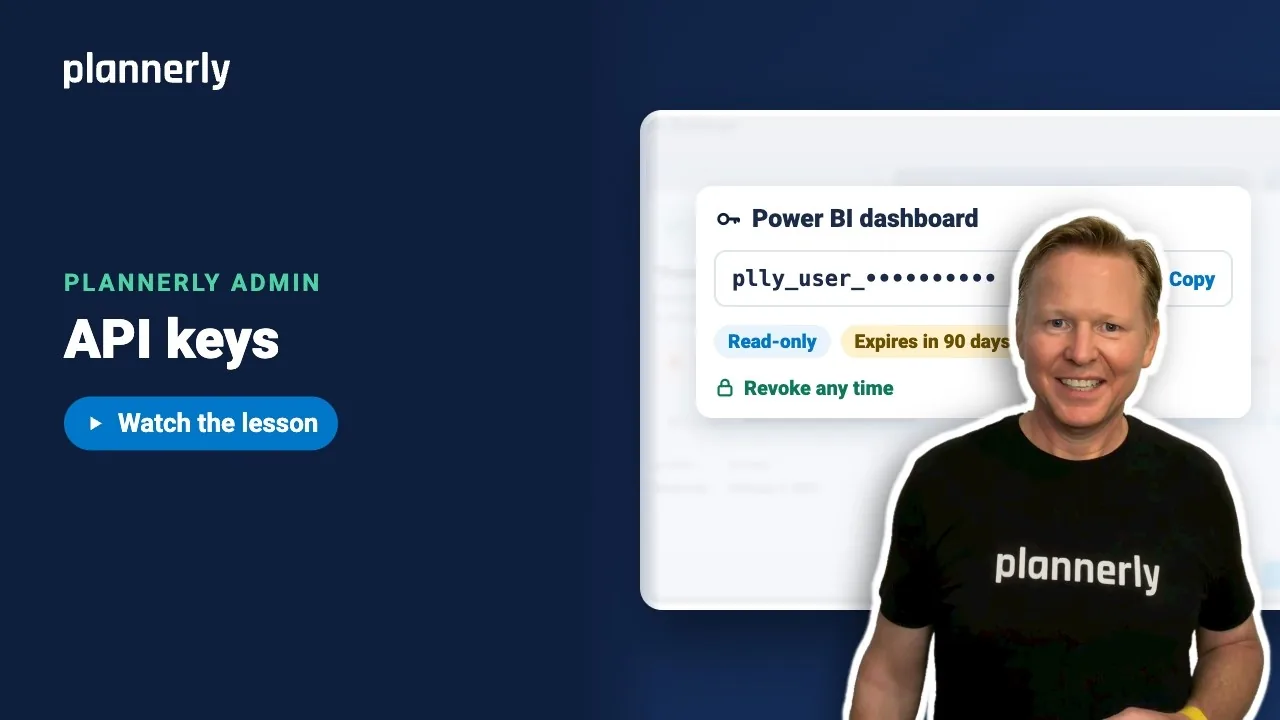
- Type a Name after whatever will use it, for example Power BI dashboard.
- Set when it expires. The choices are 7 days, 30 days, 90 days (the default, and what the video uses), 1 year and No expiration. Shorter-lived keys are safer, and a key with no expiration stays valid until you revoke it. The window also has a Read the API docs link, and keys belong to one region, so create a separate key for each of the US, Canadian and European API hosts you use.
- Choose what it can reach with Access. Read-only is plenty for a dashboard. The summary underneath reads, for example, "This key can read ... It can't change anything." Add write access only where a tool needs it.
- Select Create key.

Copy it now
- Your token appears in a window titled with your key's name. Select Copy and paste it into your tool's settings (it is sent as a Bearer token in the Authorization header).
- The warning reads: "This is the only time the token is shown." Once you close the window, it cannot be retrieved. Then select Done.

Revoke a key
Open API keys again, find the key in the list (name, created, expires, last used, status) and select Revoke. "Any integration using it will stop working immediately." If you lose a key, revoke it and create a new one.
Each key uses your live access, only reaches what your role allows on each project, and works only on the regional API host where you created it.
If it doesn't work
I can't see API keys, or creating a key is refused
API keys are not available on the Free plan unless your account is entitled. See Pro and Company: everyone on every project.
I closed the window without copying the token
It cannot be shown again. Revoke that key and create a new one.
The key works in one region but not another
A key works only on the regional API host where it was created. Create a key in each region you use.
The dashboard cannot see a project
A key only reaches what your role allows on each project. Check your own access to that project.
Common questions
How do I create an API key in Plannerly?
Open your menu, choose API keys, select New key, name it, set an expiry, choose access and select Create key. Copy the token before closing the window.
Can I see my API key again after creating it?
No. The token is shown once. If you lose it, revoke the key and create a new one.
What can a read-only key do?
It can read what its modules cover and cannot change anything.
Are the keys in Account Settings the same?
No. Those are older company-level keys, and new ones can no longer be created. Create new keys from your profile menu.
Related
- Connect your CDE - move files between systems without code.
- Roles and permissions - what your role allows decides what a key can reach.
- Pro and Company: everyone on every project - which plans include the API.
Take the free Plannerly Admin course - every lesson is a short video like this one, with a certificate when you finish.






