
TL;DR - In Account Settings, open Account notification policy. Choose which Notification types and Delivery methods your account allows. Anything you block here cannot be switched back on by any project or person in the account; everything you allow can still be turned down.
Who this is for
Account admins.
Why it matters
Too many notifications and people stop reading them. Too few and things get missed. One clear policy at the top, fine-tuned by the people closest to the work, avoids both.
Open the policy
- From the Projects page, select Account Settings at the top right.
- Open the Account notification policy section. Its description reads: "Choose the notification types and delivery methods this account allows."
- You see two areas: Notification types (what kinds of update can be sent) and Delivery methods (how they can arrive).

Block a delivery method such as WhatsApp
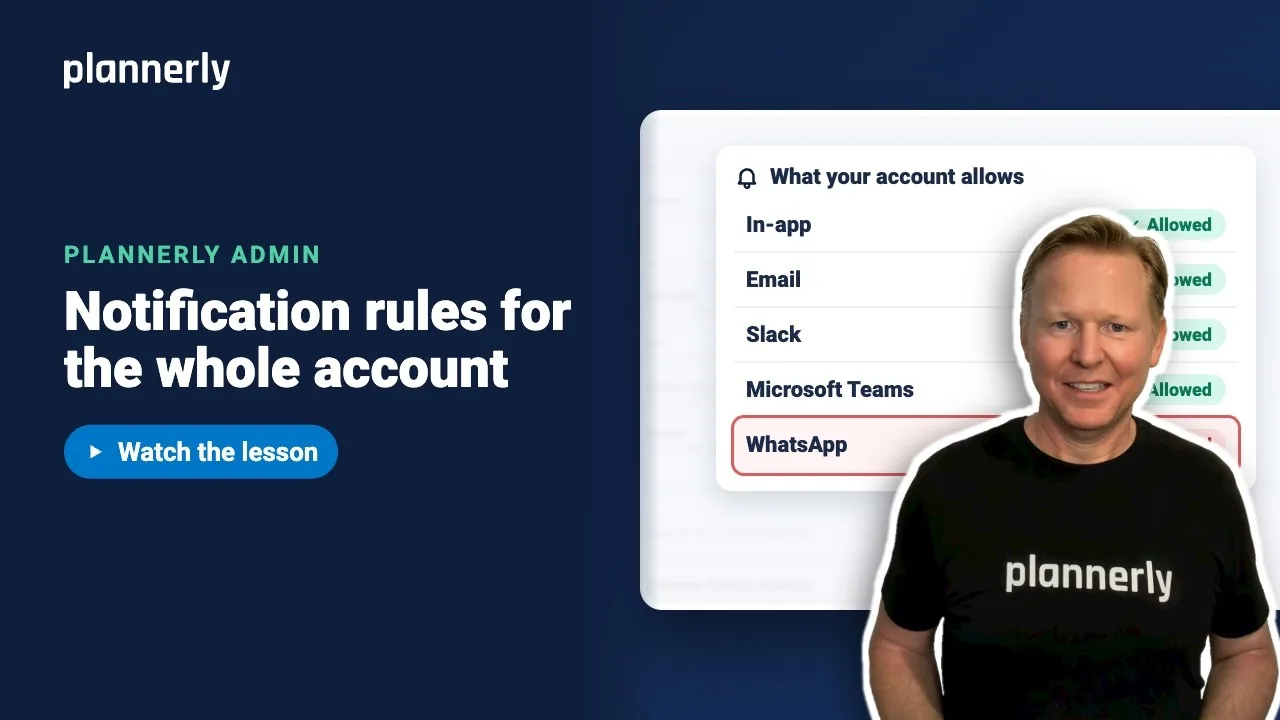
- Under Delivery methods, find the group you want. They are In-app (in-app notifications, banners, browser notifications and sound), Email (instant email and digest email) and Connected apps (Slack, Microsoft Teams and WhatsApp).
- Open Connected apps and select the WhatsApp pill. It reads WhatsApp: Allowed and changes to Blocked.
- For notification types, use a row's pill the same way, or Allow all and Block all for everything. Block all asks you to confirm.

A blocked item shows as blocked everywhere beneath it. Its tooltip reads: "Blocked by account policy. Project and personal settings cannot turn it back on." In a project's notification settings and in a person's own settings it appears locked ("Locked by account notification policy").
What projects and people can still do
Inside what you allow, each project sets its own Project defaults, and everyone can turn things down for themselves. They cannot turn on anything you have blocked.
If it doesn't work
I can't see Account notification policy
It is in Account Settings, which is for account admins. Ask one of your account admins to change it.
A project manager says they can't turn a notification on
It is blocked at account level. Account policy is the highest level: project managers and individual users cannot turn a blocked item back on. Allow it again in the policy.
A person still gets a notification I blocked
Check the exact type and delivery method are both blocked. A notification type is only delivered through allowed methods; if a method is allowed, a type you did not block can still arrive that way.
Slack, Teams or WhatsApp is allowed but nothing arrives
Allowing a connected app only permits it. Delivery needs the integration to be connected (for WhatsApp, an active Business Platform connection).
Common questions
How do I stop WhatsApp notifications for everyone in Plannerly?
In Account Settings, open Account notification policy, go to Delivery methods, open Connected apps and block WhatsApp. No project or person can switch it back on.
Can individual users still mute notifications?
Yes. Everything you allow can be turned down by each project and each person. Blocking is the only thing they cannot reverse.
What is the difference between notification types and delivery methods?
A notification type is what the message is about. A delivery method is how it reaches the person: in-app, email, or a connected app.
Does blocking delete anything?
No. It stops those notifications from being sent. Allow them again and they resume.
Related
- Your account members directory - the people these rules apply to.
- Roles and permissions - decide what each role can do.
- How Plannerly fits together - where Account Settings sits.
Take the free Plannerly Admin course - every lesson is a short video like this one, with a certificate when you finish.






