Here is the download link: https://plannerly.com/dashboard/enrolled-courses/completed-courses/
On the certificate page, click the buttons labeled 1 and 2 as shown below:
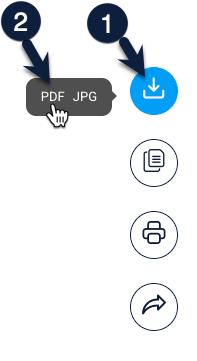
If you're unable to download your certificate, do not worry. It usually means there is just one small step left to complete. Follow these steps to get back on track:
1. Check Your Video Completion Status
- Open your training dashboard and view the list of all training videos.
- Make sure each video has a check mark next to it.
- If you see a video without a check mark, it has not been marked as completed yet.
2. Mark the Missing Video as Completed
- Click on the video that is missing the check mark.
- In the top right corner of the video screen, select the option to Mark as Completed.
- Repeat this for every video, including the Introduction video.
3. Confirm 100% Completion
- Once every video has a check mark, your course will show 100% complete.
- When you reach 100%, the option to download your certificate will become available.
Quick Tip
The Introduction video is often overlooked, so double-check that it is also marked as completed.