
How to Archive a Project
- Go to your Account Dashboard.
- Find the project you would like to archive.
- Click the Options button (three dots) on the project card.
- Select Archive.
Note: Only Account or Workspace Administrators can archive or unarchive projects.
- Enterprise Plans: Archived projects do not count against your project limits.
- All Other Plans: Archived projects do still count toward your project limit.
Viewing Archived Projects
- Use the Show Archived button on the dashboard to view all archived projects.
- From there, administrators can Unarchive a project, provided there are available project slots.
Archiving Document Sections and Document Tabs
Archiving is not just for projects - you can also archive content inside a document. This is useful when you want to keep a document tidy without losing any of the original content.
You can archive:
- Document sections - individual sections inside a document.
- Document tabs - entire tabs (a tab can hold its own set of sections).
To archive a section or a tab, open its options menu (three dots) and select Archive. The section or tab will be hidden from the default view but remains stored on the project so it can be restored at any time.
Viewing Archived Sections and Archived Tabs
Archived sections and tabs are hidden by default. To bring them back into view inside a document:
- Open the document.
- Click the Filter icon at the top right of the document toolbar.
- Under Status, click ARCHIVED to turn the archived filter on.
Once the ARCHIVED filter is on:
- Archived sections appear inline under an Archived Sections group in the document.
- Any previously archived document tabs become visible again in the tab row at the top of the document, so you can switch between them.
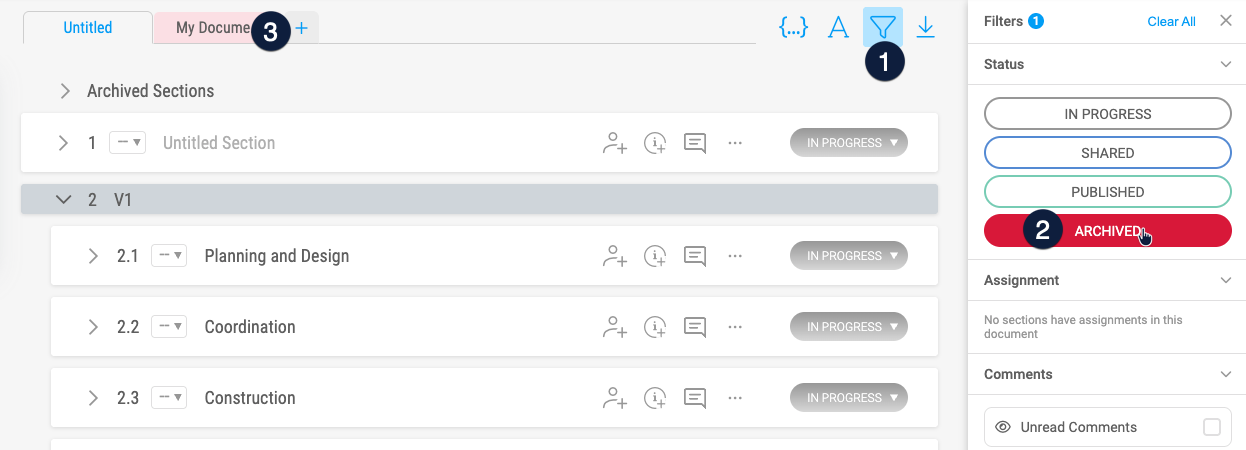
From here you can open an archived section or tab to review its content, or use its options menu (three dots) to Unarchive and restore it to the active view.
Deleting Projects
- Once a project is archived, you will see the option to Delete.
- Important: Deleting a project is permanent. Once deleted, it cannot be recovered.
Best Practices
- Use Archive at the project, tab, or section level to keep your workspace and documents organized without losing data.
- Use the ARCHIVED status filter inside a document to quickly review or restore archived sections and tabs.
- Only Delete a project when you are completely certain it is no longer needed.
- Enterprise users can archive projects without affecting project limits.
- Remember: Only Account or Workspace Administrators control archiving, unarchiving, and deleting.