
TL;DR - Open Account Settings, then Account members, and select Add account member. Enter a name and email, pick a Default team and a level for each workspace, then select Add. No email is sent: next time they sign in they can join the workspace's projects themselves.
Who this is for
Account admins. The Account members section does not appear for anyone else. Project managers can still change a person's role on their own project afterwards.
Why it matters
Inviting your own staff to every project one at a time is slow, and somebody always ends up with the wrong access. Account members lets the people responsible decide access once, per workspace. After that, your staff see the projects they are allowed to join and join at the level you set.
Add one person to Account members
- On the Projects page, select Account Settings at the top right, then open the Account members section.
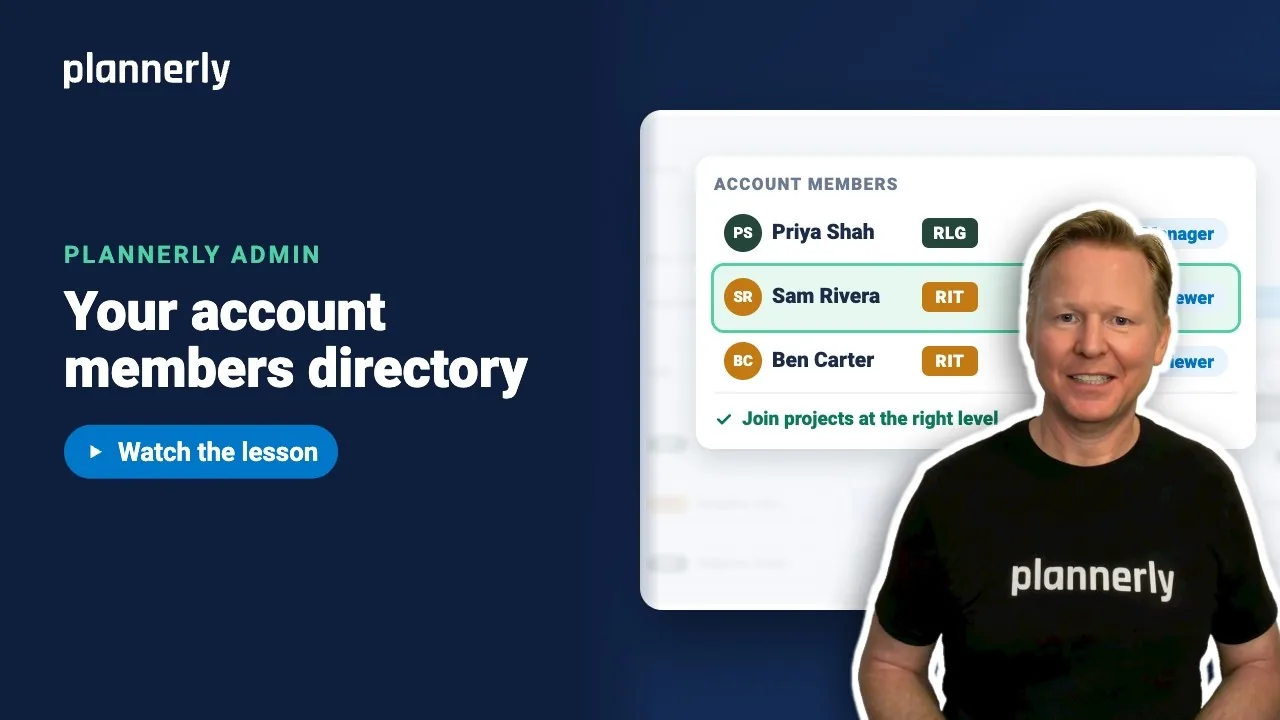
- You see a table of people with their Default team and one column for each workspace. The first time, it asks you to Create default team, because every account member joins projects with one.
- Select Add account member. Enter the person's name and email.
- Open Default team and choose the team they will join projects with (for example, an information management team).
- For each workspace, choose their level: No access, Viewer or Manager. In the video, Sam gets Viewer for Public Buildings.
- Select Add. The new row appears in the table. Under the form you will have read: "No email is sent - they'll see these projects next time they sign in."

What the person sees
- They sign in as normal.
- On the Projects page, each project in a workspace where they have access shows a card with Browsing read-only and a join button such as Join as Viewer (or Join as Manager).
- Selecting the join button adds them to the project, in a team created from their default team, at the level you set.
If someone needs more than that on one project, a manager of that project changes their role there. Defaults apply to future joins only: changing the table later does not alter anyone's existing project membership.
Change or remove an account member
- In Account members, change a person's Default team or workspace level straight in their row. To edit several people, tick their rows and use the column's Set all.
- To remove someone, use the remove option on their row. A Remove account member? window opens.
- Tick Also remove them from all projects in this account if they have left. It includes archived projects and projects they joined separately. Leave it unticked to keep their existing project memberships.
Their login and access to other accounts do not change. If they are an account or workspace administrator, that access stays even when their project memberships are removed.
If it doesn't work
I can't see the Account members section
It is for account admins only. Ask one of your account admins to add you as an admin, or to add the person for you.
I can't add the person: "Choose a default team to add"
Every account member needs a default team. Create one first with Create default team, then choose it in the row.
The person signed in but sees no projects to join
Check their level for that workspace is Viewer or Manager, not No access, and that the project is in that workspace. Defaults only apply to people added after you set them, and to future joins.
Someone cannot join as Manager on the Free plan
A Manager counts as an editor, and on Free the account owner is the only editor. When the person tries to join as Manager, Plannerly refuses and offers the 14-day Pro trial where it can. Viewer access has no such limit. See How can I assign users to my account? for plan limits.
I changed the table but a project still shows the old role
Changes here apply to future joins only. Existing project memberships are unchanged; a manager on that project changes the role there.
Common questions
Does Plannerly send an email when I add an account member?
No. Account members does not send an invitation. The person sees the projects next time they sign in. Use a project invitation (see Related) when you need to invite someone by email.
How do I give my whole company access to every project?
Add everyone as an account member, set their level for each workspace, and tell them to sign in. They join each project themselves from the Projects page. Consultants and clients outside your company are invited to a project team instead.
Can an account member see projects they have not joined?
They can browse a project read-only until they join, but only in workspaces where you gave them Viewer or Manager. With No access they do not see the workspace's projects.
How do I remove a leaver from every project?
Remove them from Account members and tick Also remove them from all projects in this account. For a single workspace you can instead use Remove from all projects in that workspace's Project Members tab.
Related
- Group projects into workspaces - the workspaces these levels are set for.
- Invite people to a project - invite consultants and clients to a project team.
- Copy your team to the next project - bring a team onto the next project.
- Inviting team members to Plannerly
- How can I assign users to my account?
Take the free Plannerly Admin course - every lesson is a short video like this one, with a certificate when you finish.






