
TL;DR - In File Manager, tick the delivered files and set their Status to In Review, then Approved or Declined. Open Charts and File delivery status to see everything delivered and outstanding, and click a segment to list those files.
Who this is for
Setting a Status needs the Manage Files permission. Seeing the charts needs Access File Manager. Adding a chart to the project home needs permission to manage the project.
Why it matters
"What's approved, and what's still outstanding?" should not need a meeting. In a common data environment, information is approved before others rely on it. Status on each file and a live chart answer the question at any time.
Set the review status on files
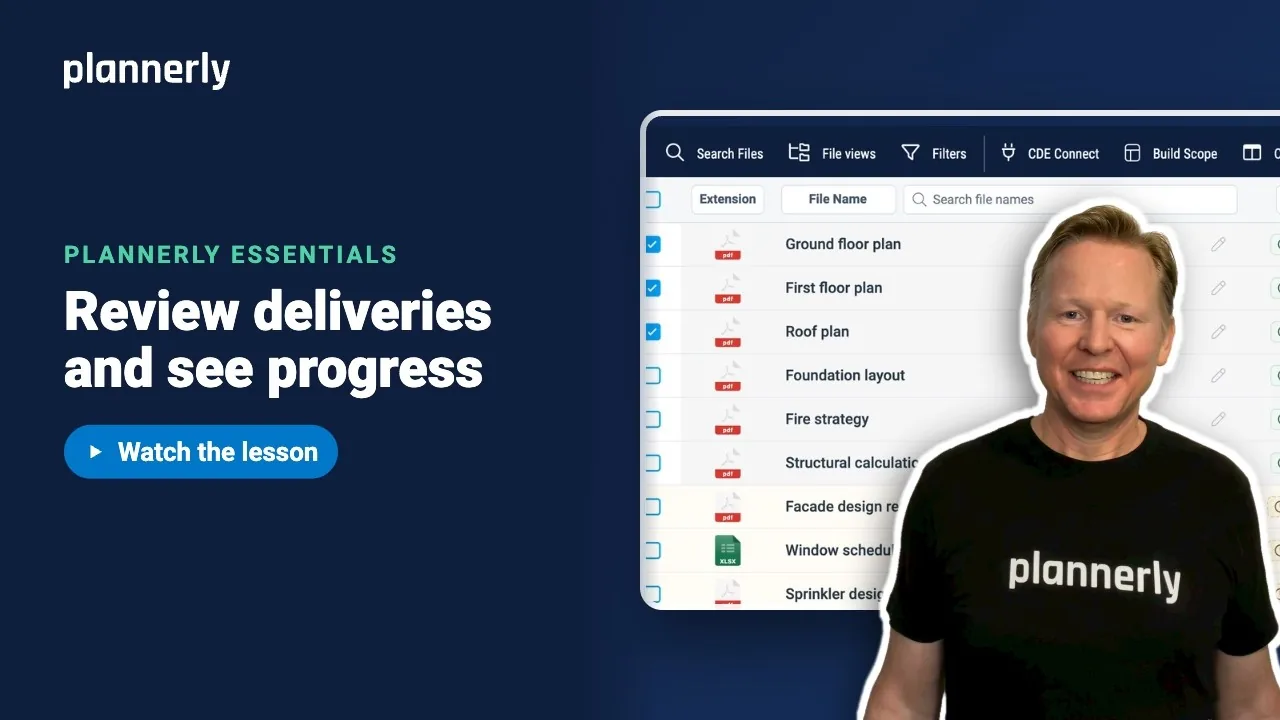
- In File Manager, tick the delivered files you want to review. Tick several to change them together.
- Select the Status pill on one of the ticked rows.
- Choose In Review. Later, choose Approved or Declined.

Until a status is set, the pill shows Requested or Delivered. The first option in the menu (Requested or Delivered, or No Status for a file with neither) takes a file back to that state. The Status applies to every ticked row.
See delivery progress in a chart
- Select Charts in the File Manager toolbar, open the chart data list and choose File delivery status under Files.
- The chart counts each file once as Requested, Delivered, In review, Declined or Approved.
- Click a segment, for example Requested, and the list shows only those files, so you see what is still missing.
- Select Clear all filters to return to the whole list.


Take it to a meeting
- Open the project home page and find Charts.
- Select the three-dot Chart report options button, then Download report (PDF).

You get the project's charts as a PDF. The project home shows the charts your project manager has added with Add Chart.
If it doesn't work
The Status pill will not change
Changing it needs the Manage Files permission. It is also locked to Auto when a signature flow drives the status.
I cannot find Charts in File Manager
You need Access File Manager. If the Charts button is missing from your toolbar, ask a project manager to check your permissions.
Add Chart is missing on the project home
Adding charts needs the permission to manage the project. Anyone who can see the project home can still use the chart report menu.
The chart count looks lower than I expect
Each file is counted once, even with several versions. Files you cannot access are not counted.
Common questions
What is the difference between Delivered and Approved in Plannerly?
Delivered means a file has been uploaded against its request. Approved is a review status a person sets afterwards. A file can be Delivered, In Review, Approved or Declined.
How do I see which files are still outstanding?
Open Charts, then File delivery status, and click the Requested segment. The list shows only the files still missing.
Can I change the status of several files at once?
Yes. Tick the files and change the Status pill on one of them; it applies to all ticked rows.
How do I get a progress report for a meeting?
On the project home, open the Charts menu and choose Download report (PDF).
Related
- Deliver a requested file and tick off every task at once - how files arrive.
- Track ISO 19650 status with your own column - add work in progress, shared and published states.
- Using Plannerly as a Common Data Environment (CDE)
- How to find and manage project files in Plannerly
- IMI Framework, formerly the UK BIM Framework - guidance on information management.
Take the free Plannerly Essentials course - every lesson is a short video like this one, with a certificate when you finish.






