
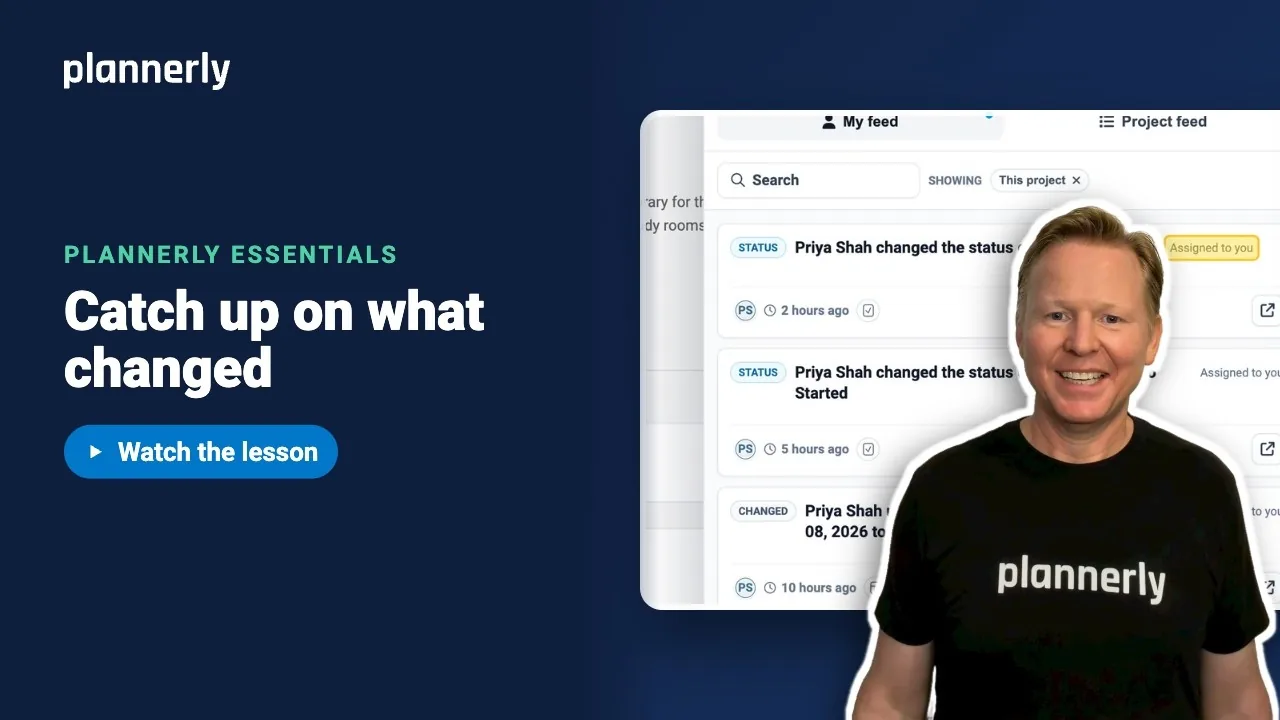
TL;DR - Select the Activity icon (the pulse line). My feed shows what involves you: mentions, assignments and replies. Each card says why it is there. Use Show new only, select a card to go straight to it, and finish with Mark all as read.
Who this is for
Anyone on a project. What you see in Project feed depends on the access you have to that project.
Why it matters
A project does not wait while you are away. Instead of reading every notification, you can see just the items that need you, go straight to them, and clear the rest.
See what involves you
- Select the Activity icon (the pulse line) in the navigation. A red count shows how many items are new.
- Stay on My feed. It lists what involves you: mentions, assignments and replies.
- Read the line on each card. It says why you are seeing it, for example Assigned to you.

Show only what is new and jump to it
- Select Show new only.
- Select a card, for example one saying someone updated the end date on a task.
- You go straight to that item in the project.
See everything on the project
- In Activity, select Project feed.
- It shows what is happening on the project, including things that do not involve you.
When you open Activity from inside a project, it starts filtered to that project.

Mark everything as read
- In Activity, select Mark all as read.
- The panel shows All caught up.

If it doesn't work
My feed is empty
Nothing new involves you, or your notification preference is set to a narrower choice such as My work. Check Project feed to see everything, and your Notification preferences to change what reaches you.
A card has no clear reason
Each card shows a reason line such as Assigned to you, Your assigned role, Direct notification, You follow this project or Project activity. Project activity means it is general news on a project, not something addressed to you.
Clicking a card does not open what I expected
If the item was deleted, or your access to it has since changed, it may no longer open. Ask a project manager.
The red count came back after I marked all as read
New activity arrived after you cleared the list. Mark all as read again.
Common questions
What is the difference between My feed and Project feed?
My feed shows only what involves you: mentions, assignments and replies. Project feed shows everything happening on the project that you have access to.
How do I see only new notifications in Plannerly?
Open Activity and select Show new only.
How do I mark all notifications as read in Plannerly?
Open Activity and select Mark all as read. The panel then says All caught up.
Why am I seeing a notification about something I did not do?
Look at the reason line on the card. It may be because the item is assigned to you, to your team, or because you follow that project.
Can I choose which updates reach My feed?
Yes. In Notification preferences, under Notify me about, choose My work or All project activity. See the profile and notifications lesson.
Related
- Ask a question where the work is - the previous lesson.
- Make it yours: photo, language and fewer emails - choose what reaches you.
- See the work that's yours - your tasks.
Take the free Plannerly Essentials course - every lesson is a short video like this one, with a certificate when you finish.






