
TL;DR - Open the project's Settings, expand Details and fill in Project ID and Client Name. Under Language, set the Project date format and Project Timezone. Everything saves as you type, and headers, exports and SmartFields read from here.
Who can do this
People whose project role has the Manage Project Settings permission, usually project managers. Everyone else can open Settings but the fields are read-only. Each person's own Application language is the exception - anyone can change theirs.
Why it matters
Your project number and client appear on every document you issue. Keep them in one place and change them once, not in someone's head or in twenty documents.
Add the project number and client
- Open the project and select Settings.
- Expand Details.
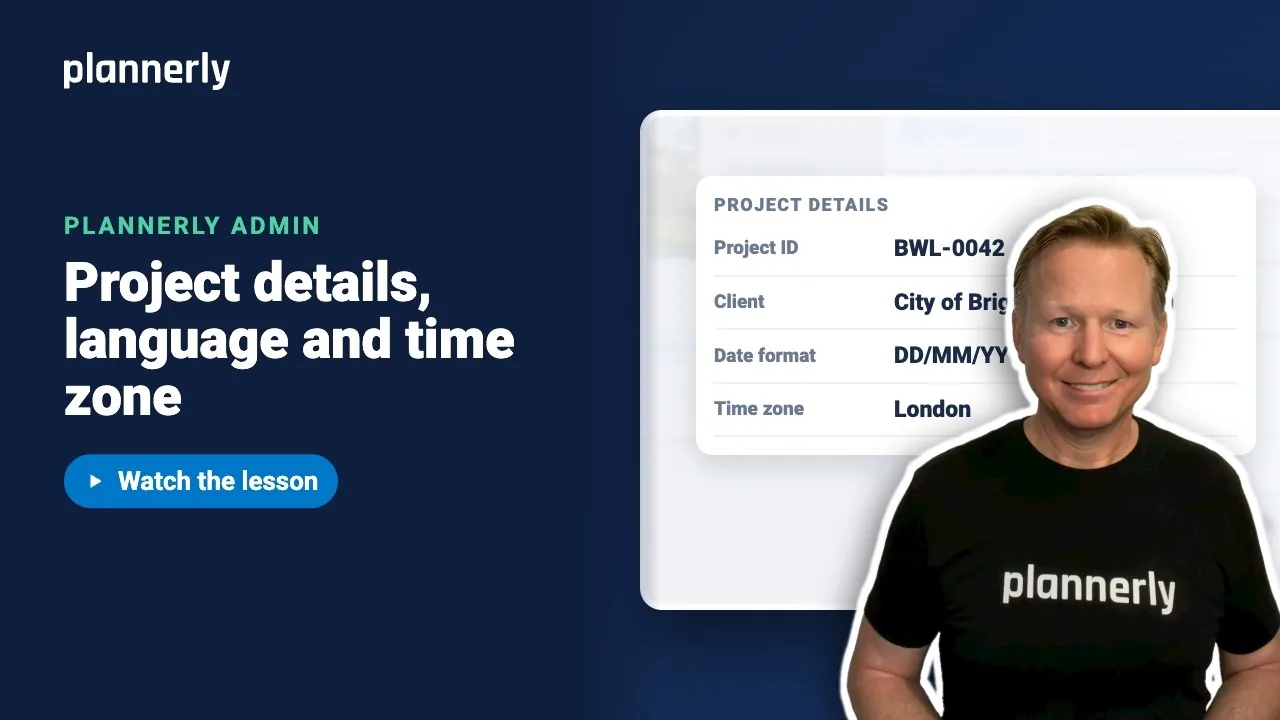
- In Project ID, type the project number, for example BWL-0042. Press Tab.
- In Client Name, type the client, for example City of Brightwater Council. Press Tab.

There is no Save button. Each field saves when you leave it. Headers, exports and SmartFields such as Client Name read these values, so changing one here changes it everywhere it is used.
Set the date format and time zone
- In Settings, expand Language.
- Open Project date format and choose how dates are written, for example DD/MM/YYYY.
- Open Project Timezone, type the city, for example London, and choose it from the list.

These are project-wide: everyone on the project sees the same date format and the same time zone, wherever they work. The Project language in the same section sets the language of BIM classifications, dictionaries and exported documents.
Choose your own language
Further down, under Just for you, Application language sets the language of Plannerly's screens for you only. Teammates keep their own.

If it doesn't work
The fields are greyed out or won't change
You need permission to manage the project. Ask a project manager to change it, or to give your role that permission in Roles and Permissions.
A document or export still shows the old client or number
Documents using a SmartField update as soon as you change it. Exports you already created keep the value they had when they were made, because an export is a record of what was issued. Create a new version of the export to pick up the change.
Dates look wrong for part of the team
Check Project date format and Project Timezone first: they apply to everyone. Your Application language changes only wording in your own screens, not the project's dates.
Common questions
What is the difference between project language and application language?
Project language is shared: it sets the language of classifications, dictionaries and exported documents. Application language is personal: it sets the language of the screens you see, and changing it affects nobody else.
Do I need to press Save in project Details?
No. Project ID and Client Name save as you leave each field.
Where does Plannerly use the project number?
Headers, exports and SmartFields read the project's details, so wherever a document shows the project number or client, it comes from this one place.
Can each project have its own date format and time zone?
Yes. Both are set per project, so a London job and a Toronto job can each read correctly.
Related
- SmartFields - the Client Name SmartField reads from these details.
- Headers, footers and cover pages - where the project number and title appear.
- Project and profile language
- Change the user interface, library and content language
- ISO 19650-1 - the concepts and principles of managing project information.
Take the free Plannerly Admin course - every lesson is a short video like this one, with a certificate when you finish.






