
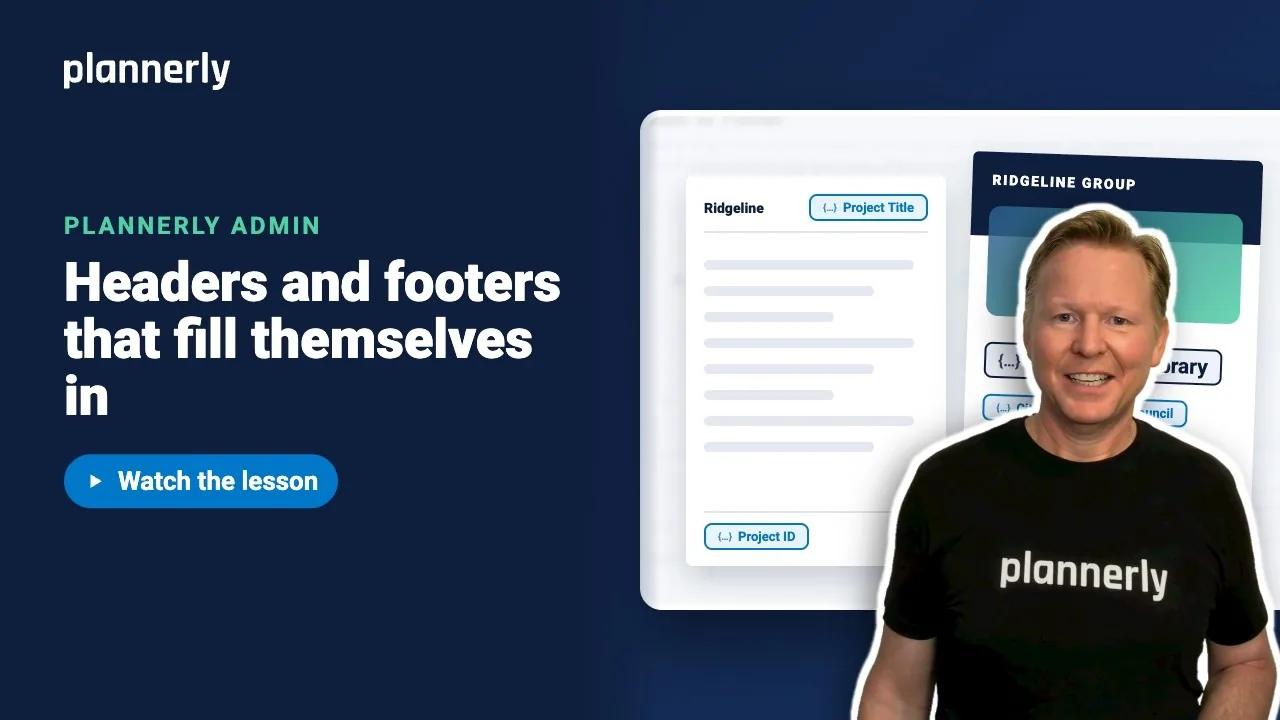
TL;DR - In Account Settings, open Settings then Headers and footers and select Add New. Choose Header, type your fixed text, insert a System SmartField such as Project Title, and tick Account default header. Every project fills in its own title.
Who this is for
Account admins. Account Settings is only open to people on the account's admin list; everyone else is sent back to the home page.
Why it matters
Retyping the project name and number into every document and export is slow, and a wrong number on a deliverable is easy to miss. A header built once from SmartFields is correct on every project, including projects you have not created yet.
Build a company header
- Open Account Settings, then Settings, then Headers and footers. Select Add New.
- Choose Header (the other choice is a footer).
- Type a name in Title, for example "Ridgeline header".
- Tick Account default header so new projects use it. For a footer the box is Account default footer.
- Click in the editor and type your fixed text, for example "Ridgeline Group | ".
- Open the SmartField button in the editor toolbar and choose a System SmartField, for example Project Title.
- Select Save.
The header appears in the list. The System list includes fields such as Project Title, Project ID, Project Address, Project Standard, Project Type, Project Description, Export Version, Export Date and Project Client Name. System SmartFields resolve automatically in every project, so each project shows its own title. Where a project has not filled a value in, that spot is left blank rather than showing a placeholder.

Where it appears
- Open any project that follows the standard and go to Export.
- Export a document or a scope report. The same header and footer is used on each.
Projects that already exist are offered the new header and take it when they are ready, from the dot on Export.
If it doesn't work
I can't see Headers and footers
Only account admins can open Account Settings. The sections start closed, so open Settings first.
The header is blank where the project title should be
The SmartField has no value on that project. System SmartFields such as Project Title fill in from the project's details; check the project's name is set. Spots with no value are left blank on purpose.
An existing project still shows its old header
Saving offers the update to the projects that follow the standard. Each takes it when ready. Open Export, select the Company standard updates item and choose Use update.
The standards are read only
If custom branding is switched off you see: "Custom branding is switched off, so your standards are read only for now." Every project keeps the header and footer it has already adopted.
Common questions
How do I put the project name in every document header in Plannerly?
Create a header in Settings then Headers and footers, insert the System SmartField Project Title, and tick Account default header. Each project fills in its own title.
What is a System SmartField?
A SmartField Plannerly fills in for you in every project, such as the project title. It is marked as resolving automatically in every project.
Can I have a different header for different offices?
Yes. You can add several headers and footers. Only one of each can be the account default.
Does the same header apply to scope reports?
Yes. The header and footer you build here is used across the things you export, including documents and scope reports.
Related
- Page setup and text styles for every export - paper size, margins and fonts.
- A cover page worth opening - the matching cover.
- SmartFields: write it once, use it everywhere - how SmartFields work.
- What are SmartFields and why you'll love them
Take the free Plannerly Admin course - every lesson is a short video like this one, with a certificate when you finish.






