
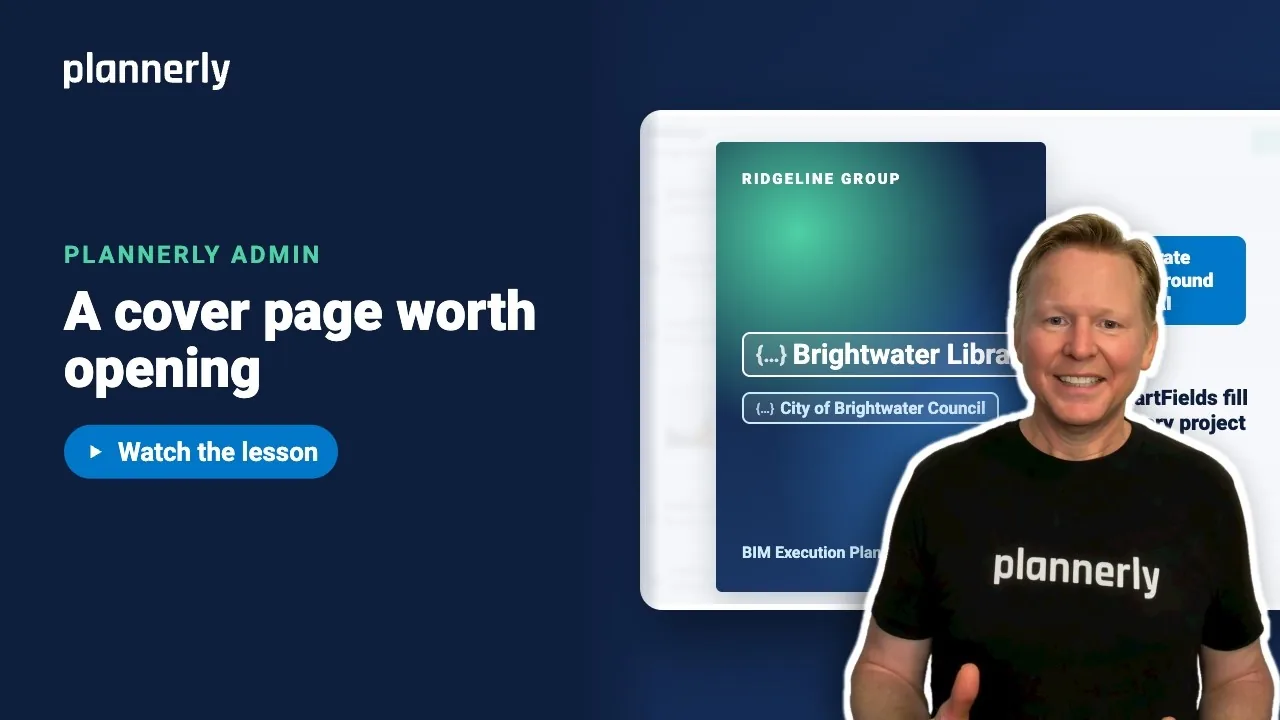
TL;DR - In Account Settings, open Settings then Cover Pages and select Add New. Use Generate background with AI for a background, then add the project title and client as large SmartFields and save.
Who this is for
Account admins. Account Settings is only open to people on the account's admin list; everyone else is sent back to the home page.
Why it matters
The cover is the first thing your client sees. Building it once with SmartFields means every project's cover shows its own title and client over your own background, with no designer and no retyping.
Add the cover page and an AI background
- Open Account Settings, then Settings, then Cover Pages. Select Add New.
- Type a name in Title, for example "Ridgeline cover".
- Select Generate background with AI. The Create a cover background window opens.
- Under Visual style choose one of: Architectural photo, Abstract construction or Technical illustration. You can add your own direction.
- Select Generate Image and wait. It can take a while.
The image becomes the cover background. It is made without any text and leaves clear space for the title.

Add the title and client as SmartFields
- Click in the cover editor. Set the paragraph format to H1 for a large title.
- Open the SmartField button and choose the System SmartField for the project title.
- Press End then Enter for a new line, set it to H2, and insert the client name SmartField.
- Select Save.
Each project shows its own title and client. If a project has no client set, that line is left blank.

If it doesn't work
The background did not generate
You see: "We couldn't generate the cover background. Please try again." Wait a moment and select Generate Image again. If it keeps failing, contact support.
It says there are not enough included AI images
You see: "There are not enough included AI images available for this request. You can keep editing and upload your own images." Where your plan includes a set number of AI images, this means they are used up for now. Upload your own background instead.
I can't find Cover Pages
Only account admins can open Account Settings, and the sections start closed. Open Settings first.
The client line is empty on a project
The client name SmartField comes from the project's details. Fill in the client on the project and the cover updates; empty values are left blank.
The standards are read only
If custom branding is switched off you see: "Custom branding is switched off, so your standards are read only for now."
Common questions
How do I make a cover page in Plannerly?
In Account Settings, open Settings then Cover Pages and select Add New. Add a background and SmartFields for the project title and client, then save.
Can I choose what the AI cover background looks like?
Yes. Pick a visual style: Architectural photo, Abstract construction or Technical illustration, and optionally add your own direction.
What happens to projects if I delete a company cover page?
Projects following it keep the cover they have already adopted.
Does the cover include text from the AI image?
No. The background is made text-free, with clear space for the title, so your SmartFields supply the words.
Related
- Headers and footers that fill themselves in - the matching header.
- Roll out a standard update to projects - how projects take changes.
- SmartFields: write it once, use it everywhere
Take the free Plannerly Admin course - every lesson is a short video like this one, with a certificate when you finish.






