
TL;DR - Plannerly's built-in Status column is for review (In Review, Approved, Declined). For ISO 19650 container states, add your own column: Settings, File Manager, File Manager columns, Add custom column. Name it, add the values with their codes, and Save.
Who this is for
Anyone with the Manage Files permission, usually the information manager. Everyone with File Manager access can then see, filter and sort by the column.
Why it matters
Without a status, everyone guesses whether a file is still in progress or has been shared. ISO 19650 gives information containers states, and many projects add suitability codes on top. A column of your own, set up once and reused, puts the project's own codes on every file.
What Plannerly already has, and what you add
File Manager has two kinds of status already. Delivery says whether a requested file has arrived. The built-in Status column says where it is in review: In Review, Approved or Declined. Neither is an ISO 19650 container state. You add those yourself as a file information column.
The states in ISO 19650 are work in progress, shared, published and archived. Many projects also use suitability codes, such as S0, S1 and S2 in the UK National Annex. Your column can use whichever values and codes your project's information standard names.
Add the status column
- In File Manager, select the gear button, Settings, then the File Manager tab.
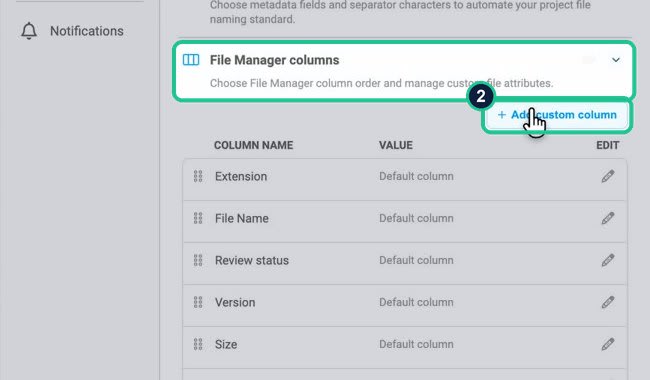
- Open the File Manager columns section and select Add custom column.
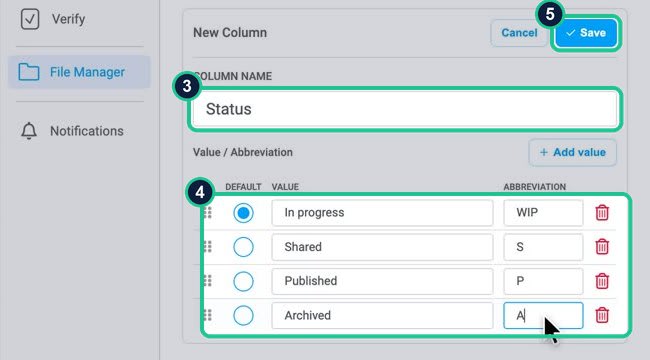
- Type the Column name, for example Status or CDE status.
- Add its values with Add value. Give each an Abbreviation: for example In progress (WIP), Shared (S), Published (P) and Archived (A), or your own S-codes. Mark one value as the Default; files start with it.
- Select Save.
Use it on files
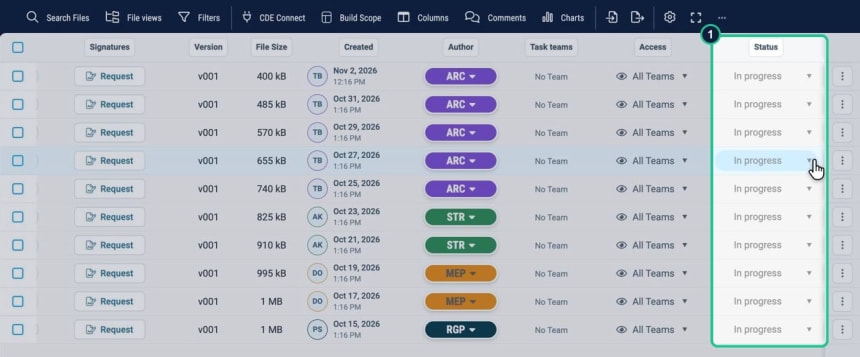
- The new column appears in the File Manager list, with every file on the default value. Change a file's value with the dropdown in its cell.
- Select Filters to find a group for the column, and filter by one state. Sort the list by the column in the same way.
If the column is also a part of your File Name Standard, the abbreviation becomes part of the file name.
Reuse it on your next project
- Open the next project and go to Settings, then File Manager, then File Name Standard.
- Select Copy from project and choose the Source project.
- Leave Also copy File Manager columns ticked. It is ticked by default.
- Select Copy standard.
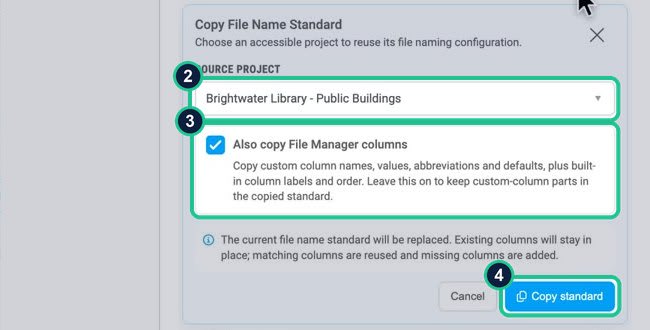
This also replaces the new project's file name standard with the source project's. Existing columns stay in place; matching columns are reused and missing ones are added. Every project then uses the same codes.
If it doesn't work
I now have two columns both called Status
Plannerly does not stop you adding a custom column with the same name as a built-in one. Rename one under File Manager columns, for example the built-in one to Review status.
I cannot find Add custom column
It is inside the collapsed File Manager columns section on the File Manager tab of Settings. You also need Manage Files; without it the section is read-only.
Copy from project replaced my naming standard
Copying a standard replaces the target project's file name standard. Check the name standard afterwards, and untick Also copy File Manager columns only if you do not want the columns.
Common questions
What are the CDE states in ISO 19650?
Work in progress, shared, published and archived. They describe who can see an information container and how far it can be relied on.
What do suitability codes S0, S1 and S2 mean?
They are status codes some projects use, defined in the UK National Annex to ISO 19650-2. Which codes you use, and what each allows, comes from your project's information standard. In Plannerly you enter them as the values and abbreviations of your own column.
Does Plannerly have built-in work in progress, shared and published states?
No. The built-in Status column is for review: In Review, Approved and Declined. Add your own column for container states. The Published column in File Manager means a file has been sent to an outside CDE, which is something different.
How do I reuse my status codes in a new project?
In the new project, open Settings, File Manager, File Name Standard, then Copy from project. Choose the source project, keep Also copy File Manager columns ticked and select Copy standard.
Related
- Review deliveries and see progress - the built-in review status.
- Set the file naming standard once - put the code in the name.
- Hand over the data the client asked for - the last lesson in the course.
- Using Plannerly as a Common Data Environment (CDE)
- ISO 19650-2 on iso.org - where the information container states come from.
Take the free Plannerly Essentials course - every lesson is a short video like this one, with a certificate when you finish.






