
TL;DR - In File Manager, select CDE Connect to see the systems you can connect, then open Automations and create a rule. Each automation brings files Incoming or sends them Outgoing. Set up both if you need to, folder by folder, and it then runs by itself.
Who this is for
People with the Docs management permission on the project (managers). New connections are not available on the Free plan.
Why it matters
Most projects run on more than one system, and someone ends up downloading, renaming and uploading files between them. CDE Connect makes Plannerly the one source of truth and keeps the other systems in step without that manual work.
See what you can connect
- Open the project and go to File Manager.
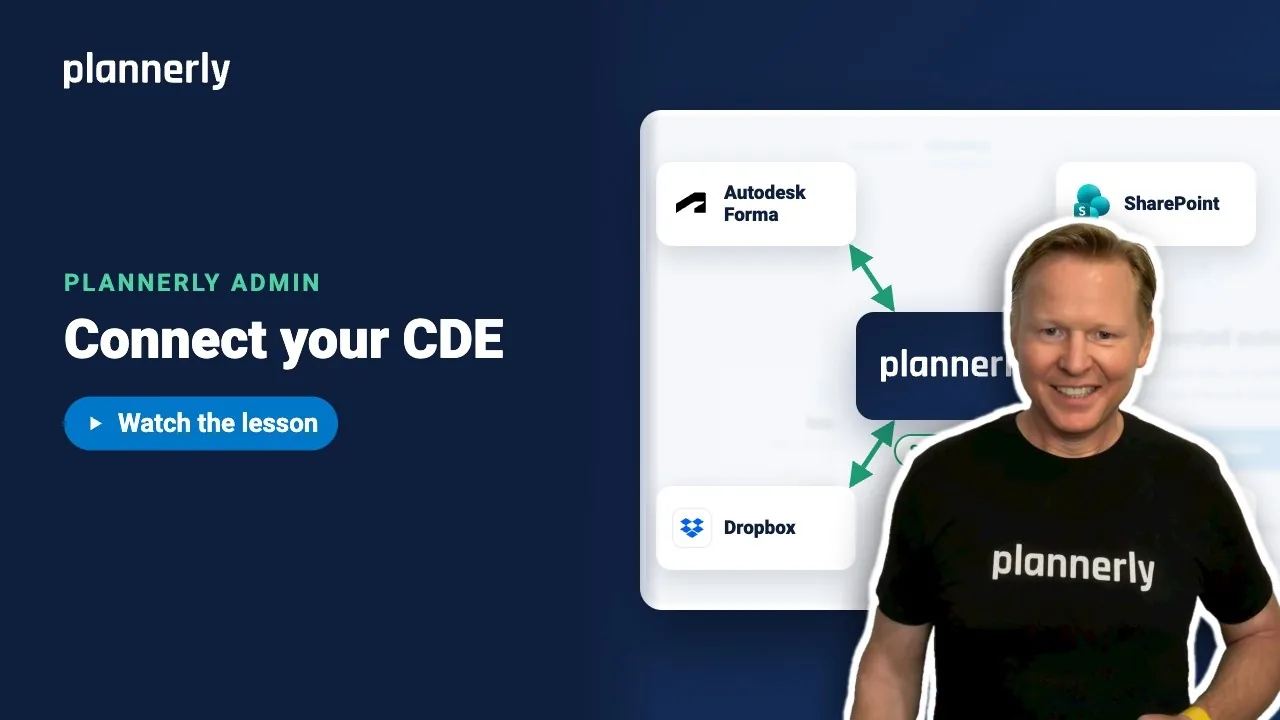
- Select CDE Connect. It lists every system you can connect: Autodesk Forma and Procore, and SharePoint, Dropbox and others where they are switched on for your account. A system that is not ready reads Setup required.

Create an automation
- Select Automations. If there are none yet, select Create your first automation (otherwise New automation). The Works with list shows the systems available for automations.
- Choose what to automate:
- Incoming - automatically bring files from an external folder into Plannerly, with the defaults you choose. They appear in All Files and any matching SmartFolders. Defaults apply only on first import.
- Outgoing - publish qualifying revisions to an external folder. For example, once a document is approved (set as a condition on its status), it is sent on to the contractor in Procore. Published copies stay there if a file later stops qualifying; this is not a mirrored folder.
- Pick the system and folder, set any conditions, review the summary, then enable it.

Once an automation is on, it runs by itself. Each one works in one direction. If you want files to move both ways for a folder, create an incoming and an outgoing automation for it.
What happens to your requests
Synced files fill the matching file requests by name, in every milestone. Deliveries tick themselves off, and your charts keep up.
If it doesn't work
A system says "Setup required"
That system is not switched on for your account yet. Contact Plannerly support. Autodesk Forma and Procore do not need this.
I can't create a connection
New connections are not available on the Free plan, and creating one needs the Docs management permission on the project. See Pro and Company: everyone on every project or ask a project manager.
A Forma sync does not load
If you use a service account for Autodesk, the Autodesk admin must have added Plannerly and invited the service account. See Connect Autodesk with a service account.
Files did not fill my requests
Matching is by file name. Check the synced file's name matches the request name; it is matched in every milestone.
Common questions
What is CDE Connect in Plannerly?
A part of File Manager that connects Plannerly to the systems your project already uses so files move between them automatically.
Is CDE Connect two-way sync?
Each automation runs one way: Incoming or Outgoing. To move files both ways for a folder, set up one of each. An outgoing automation is not a mirrored folder.
Can I send only approved files to the contractor?
Yes. Use an Outgoing automation with approval status as a condition, so only qualifying revisions are sent.
Which systems does it work with?
Autodesk Forma and Procore, plus SharePoint and Dropbox where switched on for your account. Anything not ready shows "Setup required".
Related
- Connect Autodesk with a service account - connect Autodesk through a company-owned account.
- API keys - connect your own dashboards and scripts.
- Using Plannerly as a Common Data Environment (CDE)
- Linking your ACC/BIM 360 Account
- IMI Framework, formerly the UK BIM Framework - guidance on common data environments.
Take the free Plannerly Admin course - every lesson is a short video like this one, with a certificate when you finish.






