
TL;DR - In Account Settings, open Settings then Template Management. Switch off Plannerly templates once you have your own, switch on the workspace that holds your company's templates, and select Save. Project Libraries then offer exactly those sources.
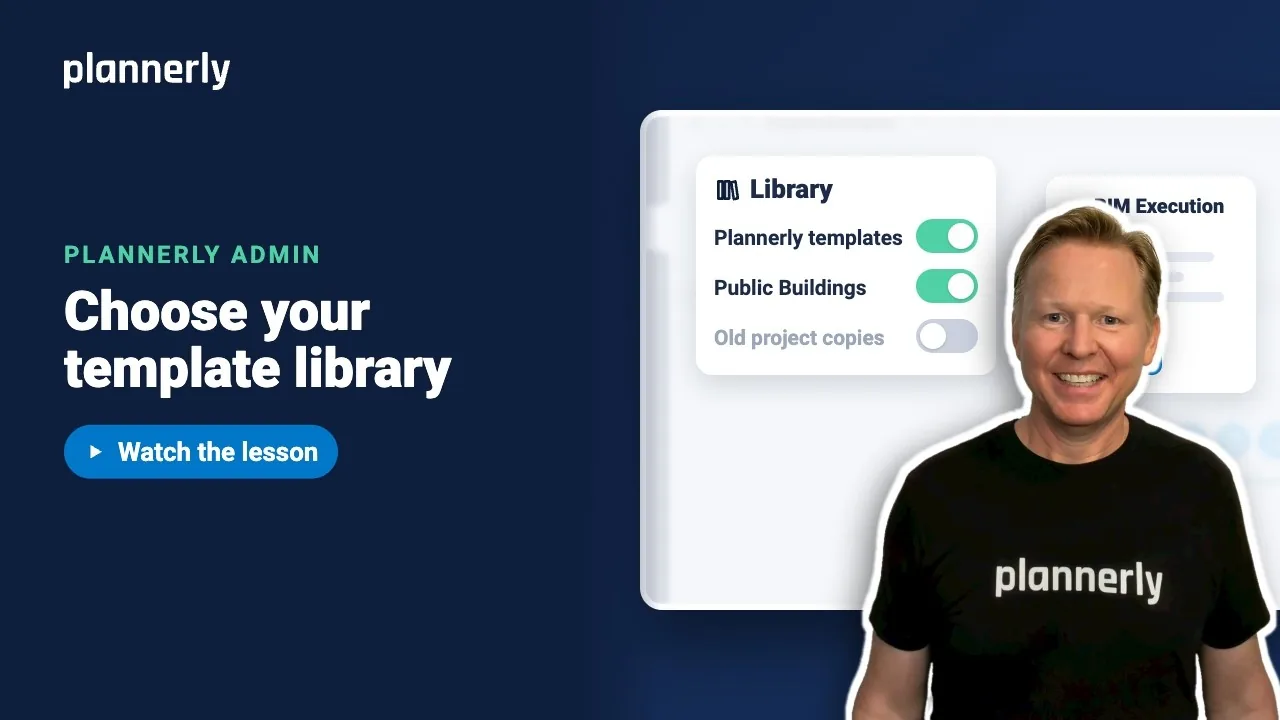
Who this is for
Account admins. Only an account admin can change Template Management. Everyone on a project then sees the sources you chose in that project's Library.
Why it matters
When teams start documents by copying an old project, out-of-date wording travels from job to job, and people keep private copies on their own computers. Choosing the template sources once means every project starts from documents you have approved.
Choose the template sources
- Open Account Settings, then Settings, then Template Management.
- Read the guidance: these sources become the Library choices available to teams working in projects on this account.
- To stop offering Plannerly's own templates, switch off Show Plannerly templates in project Libraries.
- Switch on the workspace that holds your company's templates, for example Show Ridgeline Templates in project Libraries.
- Select Save.
A count shows how many of your workspaces are selected, for example "1 of 4 selected". Template workspaces and project workspaces are labelled separately.

Check what a project sees
- Open any project and go to Docs.
- Open the Library (the bookshelf icon on the left).
- Open the source drop-down. It lists only the sources you switched on.
- Choose a source - your workspaces are listed by name, for example Ridgeline Templates - and its approved documents appear. Workspaces and the templates inside them are listed alphabetically, and Plannerly templates appears as its own source unless you have turned it off.

If it doesn't work
I can't see Template Management
Only account admins can use it; others see "You must be an account administrator to access this feature." Ask an account admin. If you are an admin, open Settings first: the sections start closed.
My company templates are not in the project Library
The workspace that holds them has to be switched on in Template Management and saved. Check its switch (Show ... in project Libraries) and that you selected Save. Reload the project afterwards.
The Plannerly templates have disappeared
You switched off Show Plannerly templates in project Libraries. Switch it back on and save to bring them back.
My workspace is not in the list
Template Management lists the workspaces on this account, both template workspaces and project workspaces. A workspace on a different account is not listed. See the workspaces lesson for creating one.
Common questions
How do I make my company templates the default in Plannerly?
Put them in a workspace, then in Template Management switch that workspace on and switch off Plannerly templates. Save. Project Libraries then offer your workspace.
Can I hide the Plannerly templates from my team?
Yes. Switch off Show Plannerly templates in project Libraries and save. You can switch them back on at any time.
Does this change documents that already exist?
No. It only changes which sources the Library offers when someone starts or imports a document.
Can I show more than one workspace as a source?
Yes. Each workspace has its own switch, and the section counts how many you have selected.
Related
- Group projects into workspaces - create the workspace that holds your templates.
- Classification standards and bSDD - the next standard to agree.
- Where to find templates in Plannerly
- Importing documents from templates or other projects
Take the free Plannerly Admin course - every lesson is a short video like this one, with a certificate when you finish.






