
TL;DR - Open the project's Settings, expand Statuses, select Add new status, name it, give each status a Progress % and select Save. Each task then shows its progress from its status, and cost progress can follow it.
Who can do this
People whose project role has Manage Statuses switched on. Without it you can see the statuses but not edit them, and Plannerly says "You need permission to manage task statuses."
Why it matters
When statuses don't match how your team really works, people stop updating them and every task sits at ninety percent done. Your team's real stages are statuses people keep up to date, and that keeps progress reports honest.
Add a status and set its progress
- Open the project and select Settings.
- Expand Statuses.
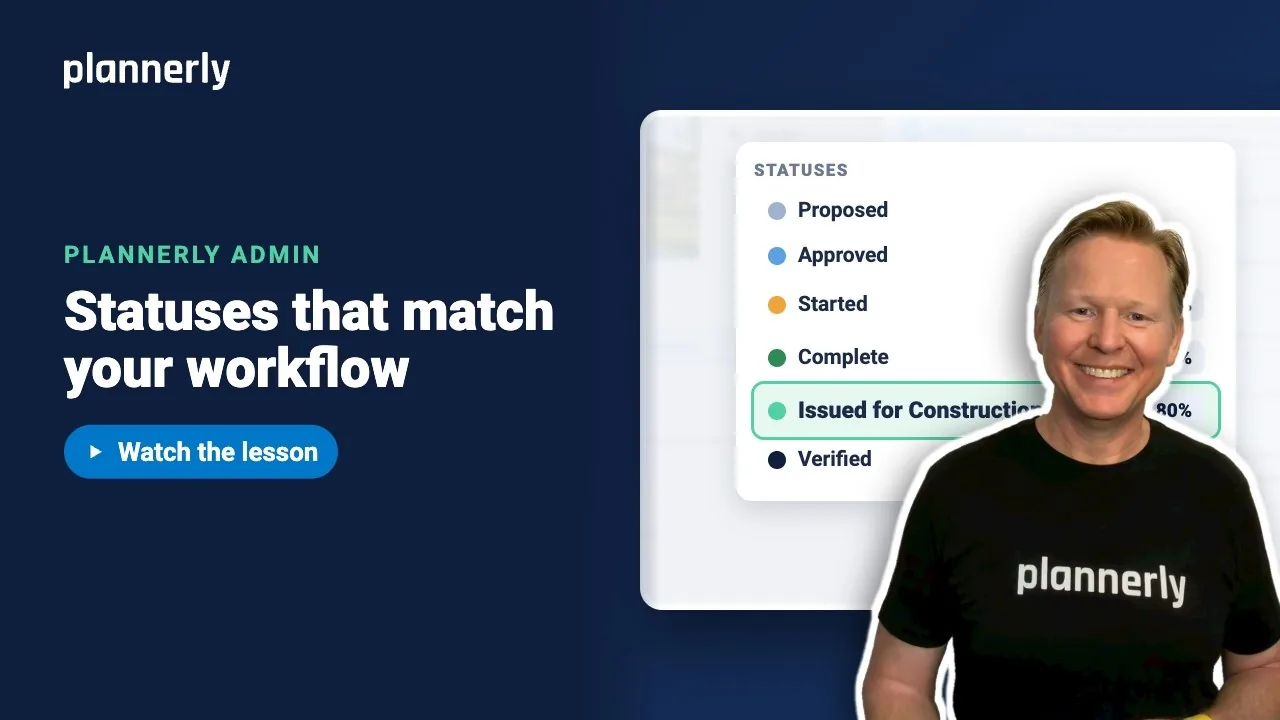
- Select Add new status, type the name, for example Issued for Construction, press Tab and enter its progress, for example 80. The new row goes in after Complete.
- In the Progress % column, set a percentage for each status you want to count towards progress - for example 10 for Started, 50 for Complete, 80 for Issued for Construction.
- Select Save.


After you save, a task takes its progress from its status whenever you move it to that status. Tasks that already exist keep the progress they have until their status or progress is next changed. If you use cost progress for payments, it follows the same percentages.
The rules for progress percentages
- Whole numbers from 0 to 100.
- Each status that has a percentage needs a different one.
- Percentages must increase down the status order.
- Pending is always 0 and Verified is always 100; you cannot change either.
- Leave a middle status blank to make it workflow only: people can use it, but it doesn't change progress.
If it doesn't work
I can't edit the statuses
You need the Manage Statuses permission on your project role. Ask a project manager to switch it on in Roles and Permissions.
Save is blocked and shows an error
Read the message: "Each linked status needs a unique progress percentage", "Progress percentages must increase with the status order" or "Progress percentages must be whole numbers from 0 to 100". Fix the row it points to.
Plannerly asks "Create a new cost setup version?"
The project already has certified cost records. Saving creates a new setup version for future records and leaves existing records unchanged. Confirm only if the contractual progress or cost setup really has changed.
Common questions
How do I add a custom status in Plannerly?
Settings, then Statuses, then Add new status. Type the name, set its Progress %, and select Save.
What does a workflow-only status do?
It is a stage people can use on a task, but it has no progress percentage, so moving a task to it doesn't change the task's progress.
Why must progress go up as the statuses go down the list?
Progress is read from the status, so a later stage with a lower percentage would make finished work look less complete. Plannerly requires the percentages to increase with the status order.
Does changing statuses change tasks that already exist?
Tasks keep their status. Changing a status's percentage does not rewrite the progress of tasks already in it: they keep their current progress until someone moves them to a status, or changes their progress, and the new percentage then applies.
Related
- Classification standards and bSDD
- Roles and permissions - who gets Manage Statuses.
- ISO 19650-1 - managing information over the project lifecycle.
Take the free Plannerly Admin course - every lesson is a short video like this one, with a certificate when you finish.






