
TL;DR - Tick the requirements in the Requirements panel, hover a task cell in the Scope grid at the milestone it is due and select Assign (or Add & Assign if the task does not exist yet). For a whole milestone, use the Requirements button on its header.
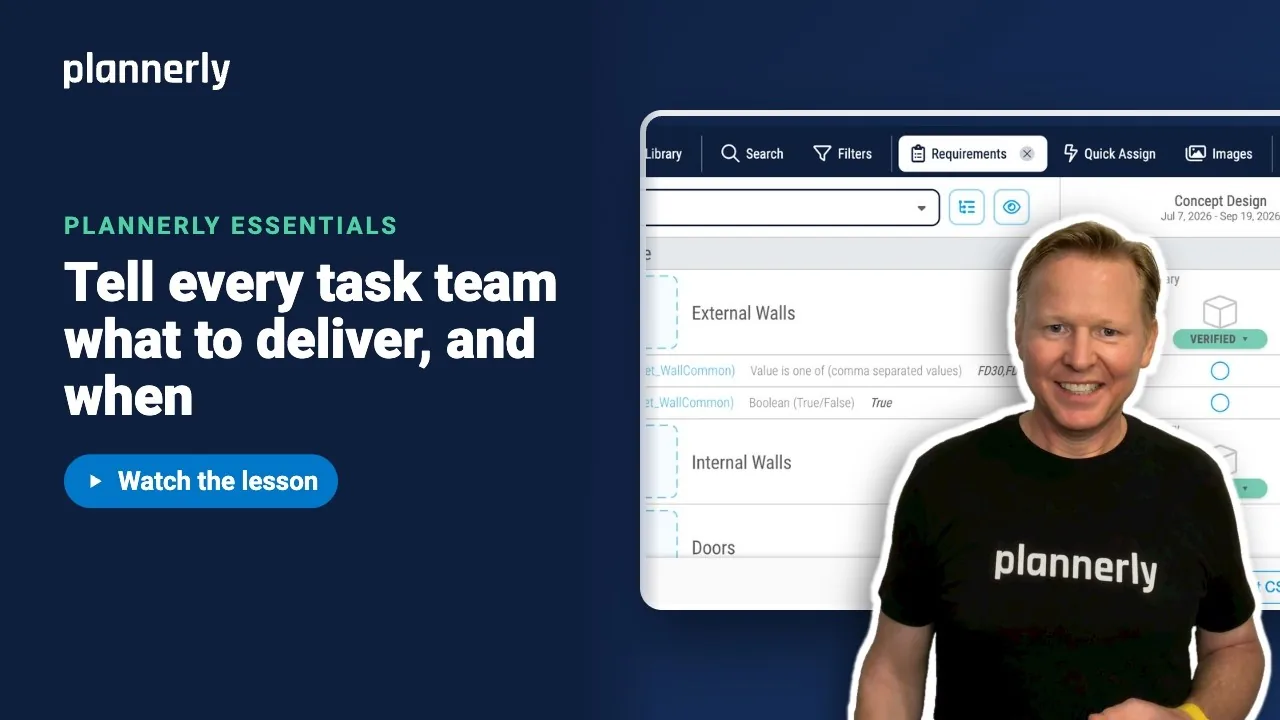
Who this is for
Project members with the Assign Information Requirements to Tasks permission, plus permission to create or edit the tasks. Ticking a requirement does nothing without the assignment permission. Viewers cannot be given it.
Why it matters
A requirement buried in a PDF rarely reaches the person who models the wall. Attached to the task, at the milestone it is due, it sits where the team already works.
Assign to one task
- In Scope, select Requirements to open the panel.
- Click a row to tick it - for example FireRating and IsExternal.
- In the grid, hover the task cell where your scope row (say External Walls) meets the milestone it is due. Select Assign.
- If the task does not exist yet, the same spot offers Add & Assign, which creates the task and attaches the requirements in one click.


Under the scope item you now see Information Requirements rows, each with a "Filter tasks by" pill for that requirement.
Assign to every task in a milestone
- With the requirements still ticked, hover the milestone header and select its Requirements button (tooltip: "Assign selected requirements to every task in this milestone").
- The window "Assign requirements - milestone" lists the requirements and the tasks that will receive them.
- Select Assign to N tasks.
The same bulk button exists on item, group and folder rows, labelled Assign requirements. If there are no matching tasks, the window says "No existing tasks match this scope."

See what a team sees
- Open the task. The Information Requirements field lists what is assigned.
- Back in the Requirements panel, Applied To shows how many scope item rows ask for each requirement. Select the number to filter the grid to those rows, and select it again to clear.

If it doesn't work
Ticking a requirement does nothing
Ticking needs the Assign Information Requirements to Tasks permission. Ask a project manager to add it to your role.
I see Assign on some cells and Add & Assign on others
Assign appears when the task already exists. Add & Assign appears when it does not, and creates it. You also need permission to create tasks.
The milestone Requirements button is missing
It appears when requirements are ticked. Tick at least one in the panel first.
Applied To shows a smaller number than I expected
It counts scope item rows, not tasks. A row with the same requirement at three milestones counts once.
Common questions
How do I assign information requirements to a task in Plannerly?
Tick the requirements in the Requirements panel, hover the task cell at the right milestone in the Scope grid and select Assign. If the task does not exist, select Add & Assign.
Can I assign requirements to a whole milestone at once?
Yes. Tick the requirements, then use the Requirements button on the milestone header and select Assign to N tasks. Only existing tasks receive them.
Where do task teams see their requirements?
In the task itself, in the Information Requirements field, and under the scope item in the Scope grid.
Can I remove requirements from many tasks at once?
Yes. Use Remove all requirements from group on a group row.
Related
- Write a requirement a model can be checked against
- Turn the client's requirement matrix into scope and requirements - assign hundreds at once.
- Set your milestones
- ISO 19650 requirements management in Scope
Take the free Plannerly Essentials course - every lesson is a short video like this one, with a certificate when you finish.






