
TL;DR - In Scope, open Quick Assign from the Tools bar. Pick a team under Teams, choose its role (R, A, C or I), then click a folder, row, milestone or cell to stamp it on every task there. Tick Create new tasks for blank cells to fill the gaps too.
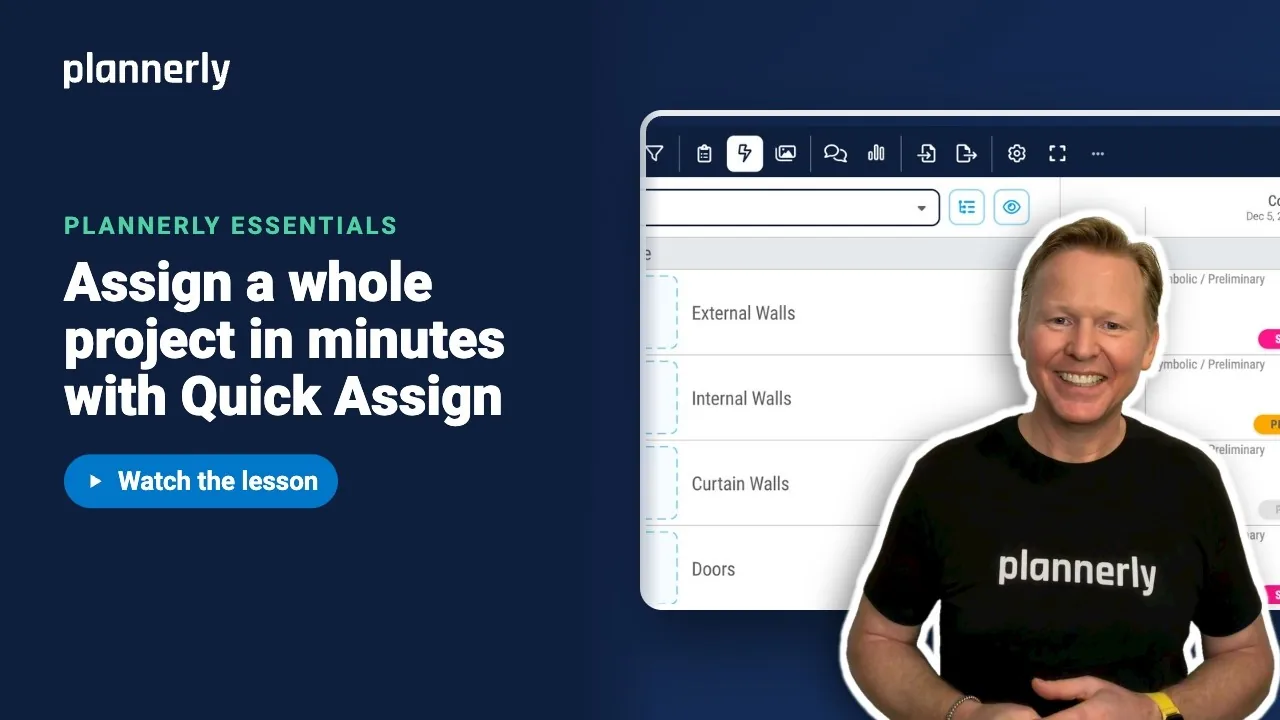
Who this is for
People whose role lets them manage Scope items and task assignees, usually project managers and information managers. If you only have view access Quick Assign is not available.
Why it matters
Assigning three hundred deliverables one at a time is slow and easy to get wrong. Quick Assign works like a paintbrush, so you can set up a whole project's responsibility matrix in minutes, then agree it with the teams before the work starts.
Open Quick Assign
- In Scope, make sure you have at least one milestone and one row. The button only appears once you do.
- On the Tools bar, select Quick Assign (the bolt). A guide card, Quick Assign - paintbrush mode, explains the two steps: Pick your paint on the right, then Click anything to apply.
- Close the guide card.

Paint a team onto a folder
- In the drawer on the right, open Teams and tick the team, for example Architecture. Beside Teams and Team Members are two buttons, Add and Replace. Add keeps the teams already on a task; Replace swaps them for the ones you ticked. Add is the default.
- Choose the role beside it, for example R - Responsible.
- Hover the folder and select Assign to folder.
- Check the confirmation, which lists the values to apply and the number of tasks, then select Assign to N tasks.
You can also click a row (Assign to row), a group (Assign to group), a single cell, or a milestone name above the grid to apply it to every task in that column.
Create the missing tasks as you assign
- Hover a milestone header and select Assign.
- In the confirmation, tick Create new tasks for blank cells. Plannerly will add a task wherever a row has none at that milestone.
- Select Add & assign to N tasks.

Switch team and paint again
- Untick the first team and tick the next, for example Main Contractor, with I - Informed.
- Select Assign on another milestone, or click other folders.
- Repeat until the grid is filled, then select Close mode (the highlighted Quick Assign button).
Back in the normal grid, every cell shows its team badges with the role letters in place.

If it doesn't work
I can't see Quick Assign
The button only appears after the project has at least one milestone and one row. If both exist, your role may not allow managing Scope items; ask your project manager.
Teams or Team Members are missing from the drawer
Those sections need permission to manage task assignees. Without it you can still use the other sections but not assign people.
The numbers in the confirmation look too high or too low
The count is the tasks that will change. Blank cells are skipped unless you tick Create new tasks for blank cells. Cancel and check your selection if the count surprises you.
"You have reached the maximum amount of tasks for Free projects"
Free projects have a task limit, so new tasks cannot be created past it. Upgrade the project or untick the create option.
I assigned the wrong team
Paint over it with the right team (check whether Add or Replace is selected first), or use the assignment badges in the cell to remove it.
Common questions
What is Quick Assign in Plannerly?
Quick Assign is a bulk mode in Scope. You pick values such as a team and a RACI role in the side drawer, then click any cell, row, folder, group or milestone to apply them to every task there.
How do I assign a team to every task in a folder?
Open Quick Assign, tick the team and its role, hover the folder and select Assign to folder, then confirm with Assign to N tasks.
Can Quick Assign create tasks that do not exist yet?
Yes. On a milestone or folder confirmation, tick Create new tasks for blank cells and select Add & assign.
Can I give a task two teams?
Yes. A task can hold several teams, each with its own R, A, C or I. Plannerly prompts you if more than one is marked Accountable.
Related
- One task, one team, one clear role - the one-task version of this.
- Find the gaps before they find you - check nothing was missed.
- Export your MIDP, each team's TIDP and a RACI matrix
- RACI Survival Kit
- Assigning tasks quickly using the Kanban view - the equivalent for Verify tasks.
Take the free Plannerly Essentials course - every lesson is a short video like this one, with a certificate when you finish.






