
TL;DR - Edit the standard in Account Settings and select Save. It is offered to every project that follows it. On each project a dot appears on Export; the team opens Company standard updates and chooses Use update or Keep current for each change.
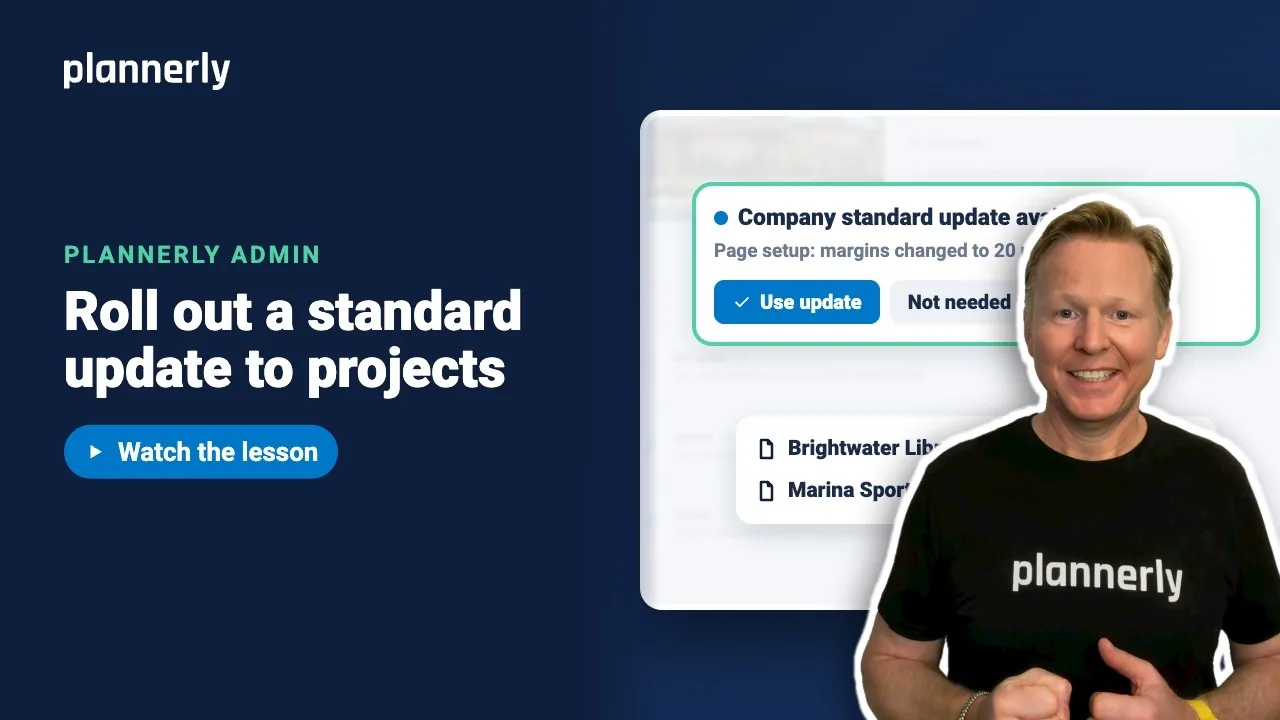
Who this is for
Account admins make the change. On a project, people who can manage documents in that project choose which updates to use.
Why it matters
Change a standard mid-project and you either rework every live document overnight or nobody notices at all. Here you change it once, projects are told, and nothing moves in a live project until its team says so.
Change the standard and offer it
- In Account Settings, open Settings and the section you want, for example Page Setup.
- Select Edit on the row, for example your Letter page setup, and change a value, such as the top margin.
- Rest the pointer on Save first: a tooltip tells you how many projects the change will be offered to, for example 3.
- Select Save.
The row shows when it was last changed, how many projects use it and how many are waiting. "Projects choose when to take your changes."

Review the update on a project
- Open a project that follows the standard. A dot shows on Export.
- Select Export, then the Company standard updates item ("See what changed and choose what this project uses").
- Each change shows what the project has now and what it becomes, for example the top margin.
- Choose Use update to bring the project in line, or Keep current to leave it as it is.
- Select Apply.
After you apply, open Export to see the result in the preview. Updates you do not choose stay waiting.

If it doesn't work
I can't see the dot on Export
The project may not follow that standard, may already match it, or has no update waiting. The window says: "No company standard updates are waiting for this project."
I can't choose an update
Only people whose role has the Manage Documents permission can choose, which by default is the Manager role. The window says so. Ask a project manager.
"Waiting" will not go down
Each project takes the change when its team is ready. The row's hint says projects have been offered your last change and have not taken it yet. Ask those teams to review it from Export.
The window cannot show the details
You see: "We can't show the details of this update right now, but you can still choose." Try again later, or choose with what you know.
Common questions
What happens to my live projects when I change a company standard?
Nothing at first. Each project is offered the update and its team chooses Use update or Keep current.
What does Keep current do?
It leaves the project as it is and does not change its settings.
How do I know which projects have taken the update?
The standard's row in Account Settings shows how many projects use it and how many are waiting.
Can a project see exactly what would change?
Yes. Each update lists what the project has now and what it becomes.
Related
- Page setup and text styles for every export
- Headers and footers that fill themselves in
- A cover page worth opening
- Source templates in Docs - a similar choose-when-to-update idea for document sections.
Take the free Plannerly Admin course - every lesson is a short video like this one, with a certificate when you finish.






