
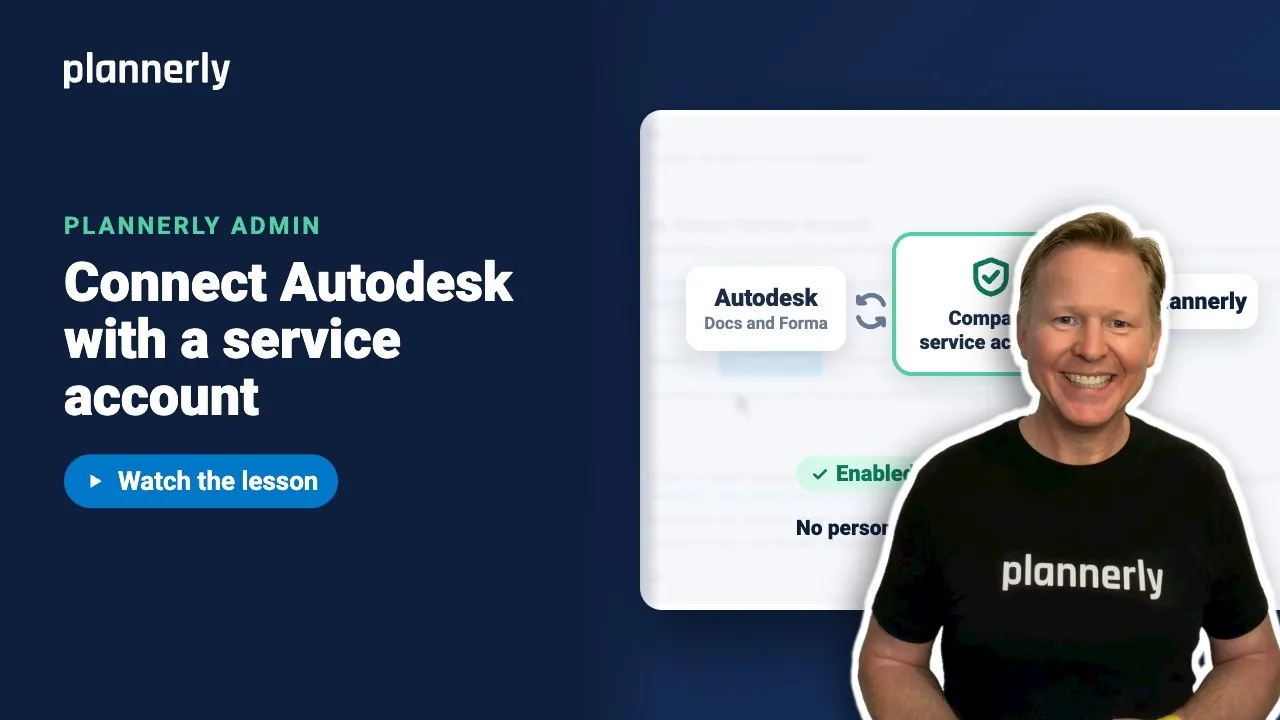
TL;DR - In Account Settings, open Autodesk Secure Service Account, select Enable SSA, and follow the steps to add Plannerly in your Autodesk admin. Then select Enable and switch. Every Autodesk connection in the account now runs through the service account.
Who this is for
Plannerly account admins, working with an Autodesk admin for the hub. The section shows only if your plan includes the Autodesk integration: Pro, the Pro trial and Company do, and Free does not.
Why it matters
When an Autodesk connection runs through one person's login, it breaks the day they leave, usually the week of a big submission. A service account is an Autodesk account for software rather than a person, so access belongs to the company.
Enable the service account
- In Account Settings, open Autodesk Secure Service Account.
- Select Enable SSA. A setup panel opens.
- Follow the Autodesk setup (an Autodesk admin does this in Autodesk Hub Admin):
- Add the Client ID shown to Custom integrations in each Autodesk hub you want to connect.
- Add the service account email address shown as a member of each Autodesk project you want to connect.
- Give it access to the required modules and folders, including permission to view and download files and models.
- Select Continue when the Autodesk admin is ready.
- You see "Switch this account to SSA?". It warns that existing Forma connections will switch. Select Enable and switch.

Check it is working
- The section now shows Enabled in Plannerly and the service account email.
- Select Check access to see which Autodesk projects the service account can reach. Folder and model permissions are checked when you browse folders in File Manager or connect models in Verify.

From now on every Autodesk connection in your account runs through it and nobody's personal login is involved. Models are not deleted by the switch.
If it doesn't work
I can't see Autodesk Secure Service Account
The section appears only on plans that include the Autodesk integration, and only to account admins. See Pro and Company: everyone on every project.
Enable SSA is greyed out
It is disabled when the Autodesk server app is not configured for your region. Contact Plannerly support.
"Plannerly couldn't access this Forma data using your account's Autodesk service account"
Ask your Autodesk admin to check three things: Plannerly's Client ID is added to the hub's Custom Integrations, the service account email is invited to the project, and it has view and download access to the model folders. Then try again.
Check access finds no projects
"No accessible projects found." Have the Autodesk admin recheck the Client ID, project membership and permissions, then select Check access again.
Common questions
What is a Secure Service Account (SSA) in Plannerly?
An Autodesk account for software rather than a person. Plannerly creates one for your account, and your Autodesk admin controls which projects, files and models it can reach.
What happens to personal Autodesk logins when I switch?
They are no longer used for Autodesk connections in the account. Everything runs through the service account.
Can I switch back?
Yes. Select Disable SSA in Account Settings. Connections return to the previous method; the service account is kept for reuse and its Autodesk memberships are not removed. Autodesk sync in File Manager pauses until SSA is enabled again.
Do I still need to add Plannerly in my Autodesk hub?
Yes. An Autodesk admin must add Plannerly's Client ID to Custom Integrations and invite the service account to each project. Plannerly cannot do that for you.
Related
- Connect your CDE - Autodesk Forma is one of the systems it can sync with.
- Add your fellow admins - who can change this setting.
- Linking your ACC/BIM 360 Account
- Plannerly vs Autodesk CDEs
Take the free Plannerly Admin course - every lesson is a short video like this one, with a certificate when you finish.






