
TL;DR - On the project dashboard, open Teams, select Add Team, enter a Team Name, choose a Role, add a logo, and select Save. Tick Prospective Team for a team that is not appointed yet.
Who this is for
Project managers (anyone with permission to manage teams on the project).
Why it matters
On a busy project you need to see who is who at a glance. A team with its own name, badge and abbreviation is easy to spot wherever its work appears - which Tom is the architect becomes obvious.
Add a team
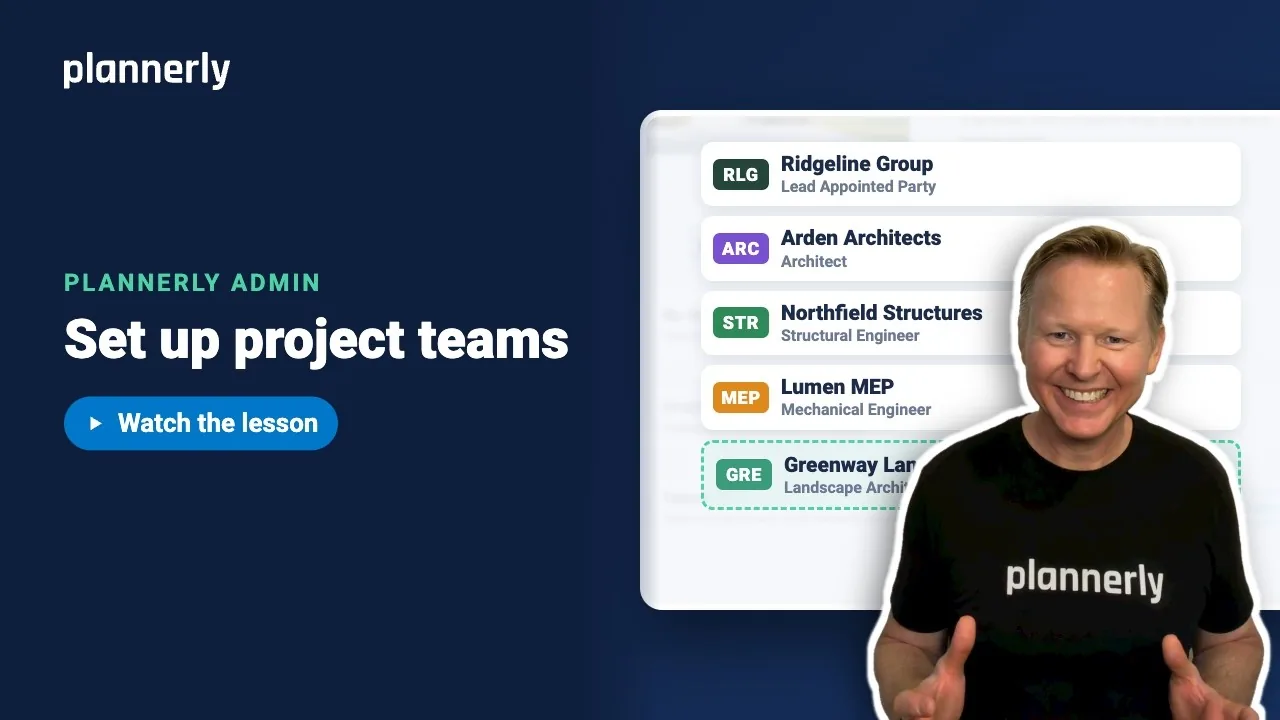
- On the project dashboard, select Open Teams to show the project's teams (if the section is already open, the button reads Close Teams). Each team appears with its name, badge and abbreviation.
- Select Add Team.
- Enter the Team Name, for example Greenway Landscape.
- Open Role and choose the team's role, for example Landscape Architect. It is a set list of project roles, such as Architect, Engineer, Contractor, Information Manager and a range of designers, engineers and subcontractors.
- Add a logo with the upload image area ("Click or drop an image to upload a team logo"). The abbreviation fills in from the team name's initials; change it if you like. You can also pick the team's badge color.
- Select Save. The team appears in the list, ready for its people.

Mark a team as Prospective
If a firm is not appointed yet, tick Prospective Team before you save. Prospective team members have limited access: they do not see other teams, only see Document tabs assigned to them, and see Scope in view-only mode. When the firm is appointed, change the team to a normal team.

If it doesn't work
I can't see Add Team
You need permission to manage teams on the project, which project managers have. Ask one to add the team or to change your role.
Save is greyed out
The team needs a name, a role and an abbreviation. Fill in Team Name and choose a Role; the abbreviation is suggested from the name.
I can't put a Manager on a prospective team
"Project Managers cannot be on Prospective Teams." Make everyone on that team an Editor or Viewer, or use a normal team.
A prospective team member can't be on two teams
"Users on prospective teams can not be on more than one team." Keep them to one prospective team.
Common questions
What is a prospective team in Plannerly?
A team that is not appointed yet, such as a consultant bidding at tender stage. Its people see only what prospective teams are allowed to see.
What is a task team?
The people doing one share of the work on a project. Each has its own name, role, badge and abbreviation so its work stands out.
Can I change a team's logo or name later?
Yes. Open the team and edit it; changes apply to the team across the project.
How do I add people to the team?
Expand the team and select Add Member, or bring a team over from another project. See the lessons on inviting people and copying a team.
Related
- Invite people to a project - add people to the new team.
- Copy your team to the next project - copy teams from an earlier project.
- Roles and permissions - decide what each role can do.
- Inviting team members to Plannerly
- ISO 19650-2 (iso.org) - the delivery team structure.
Take the free Plannerly Admin course - every lesson is a short video like this one, with a certificate when you finish.






