
TL;DR - Open the Projects page, type a few letters in Search projects, and select your project's card. The small icon on the card shows your role. Inside, Docs, Scope, Verify and File Manager run down the side, and the arrow next to the project name switches projects.
Who this is for
Anyone invited to a project. Every role can find projects and open the dashboard. What you see inside depends on your role and on which parts the project uses.
Why it matters
After an invitation, the first questions are always the same: where is my project, and what are all these tabs? Knowing them once saves you from clicking around for the first week.
Find your project
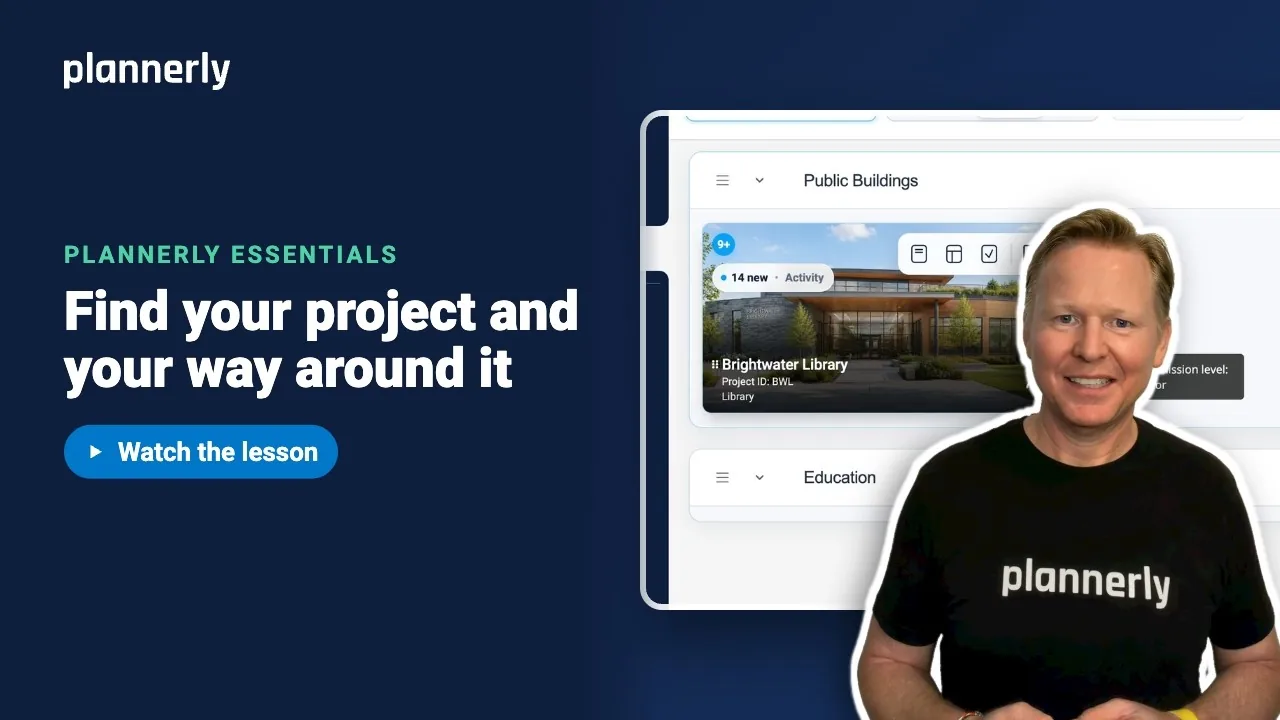
- Sign in and open the Projects page. Every project you are on is shown as a card with its picture.
- Select the Search projects box and type a few letters of the name, for example Bright.
- Select the project's card to open it.
You should now be on the Project Dashboard, with the project's details and quick links.

Check your role on a project
- On the project's card, hover the small icon.
- A tooltip reads Your project permission level followed by your role: Manager, Editor, Viewer or Prospective.
Your role decides what you can change. A Viewer can read and comment; an Editor can also edit; a Manager looks after the project itself.

Learn the project's tabs
- Open the project. The Project Dashboard shows the details, Quick Links and, further down, who is on which team.
- Down the side, find the areas the project uses: Docs for the project documents, Scope for who delivers what and when, Verify for checking models, and File Manager for files.
You only see the tabs your project uses, and only those your access includes.
Switch to another project
- Select the small arrow next to the project name. The Switch project list opens.
- Type in Find a project, or pick a project from the list.

If it doesn't work
I cannot see the project I was invited to
Check that you signed in with the same email address the invitation was sent to. If you belong to more than one account, the account names are listed in the left side bar of the Projects page, so check the right one is selected. If it is still missing, ask the person who invited you to send the invitation again.
A tab I expected is missing
You only see the areas your project uses, and only the ones your permission allows. Ask a project manager whether the project uses that area and whether your role includes it.
I can look but not change anything
Your role may be Viewer. Hover the icon on the project card to see it. A project manager can change your role.
Common questions
How do I find the project I was invited to in Plannerly?
Open the Projects page and type a few letters of its name into Search projects. Select the card to open it. If it is not listed, make sure you signed in with the email address that received the invitation.
What does the icon on a Plannerly project card mean?
It shows your permission level on that project: Manager, Editor, Viewer or Prospective. Hover it to read the tooltip.
What are Docs, Scope, Verify and File Manager?
Docs holds the project documents you write and review together. Scope is where the project plans who delivers what, and when. Verify is for checking models against requirements. File Manager is for the project's files.
How do I switch between projects without going back to the list?
Select the arrow next to the project name, then pick a project or type in Find a project.
Why do my tabs look different from my colleague's?
Each project switches on the areas it uses, and each person's permission decides which of them they see.
Related
- The words you'll hear on every project - the previous lesson.
- See the work that's yours - the next lesson.
- Permissions: Viewer, Editor, Manager
- Not sure why you got invited to Plannerly?
Take the free Plannerly Essentials course - every lesson is a short video like this one, with a certificate when you finish.






