
Who this is for
Anyone who can edit a section can insert a SmartField. Changing a SmartField's value needs Manage SmartFields on your project role. For the idea behind SmartFields, see What are SmartFields.
Why it matters
The client renames the project and you find the old name in forty places, and you only find thirty-nine. A SmartField keeps the value in one place, so every section and every document reads the same fact.
Turn typed text into a SmartField
- In Docs, open a section where the client's name is typed, for example Appointing party.
- Select the client's name in the text. The selection tools appear: AI tools, Insert SmartField and Add Comment.
- Choose Insert SmartField.
- In the list, pick Client Name. It sits in the Project Information group, because it reads straight from the project's own details.
- Select Save & close. The name now appears as a SmartField.

Replace the other copies
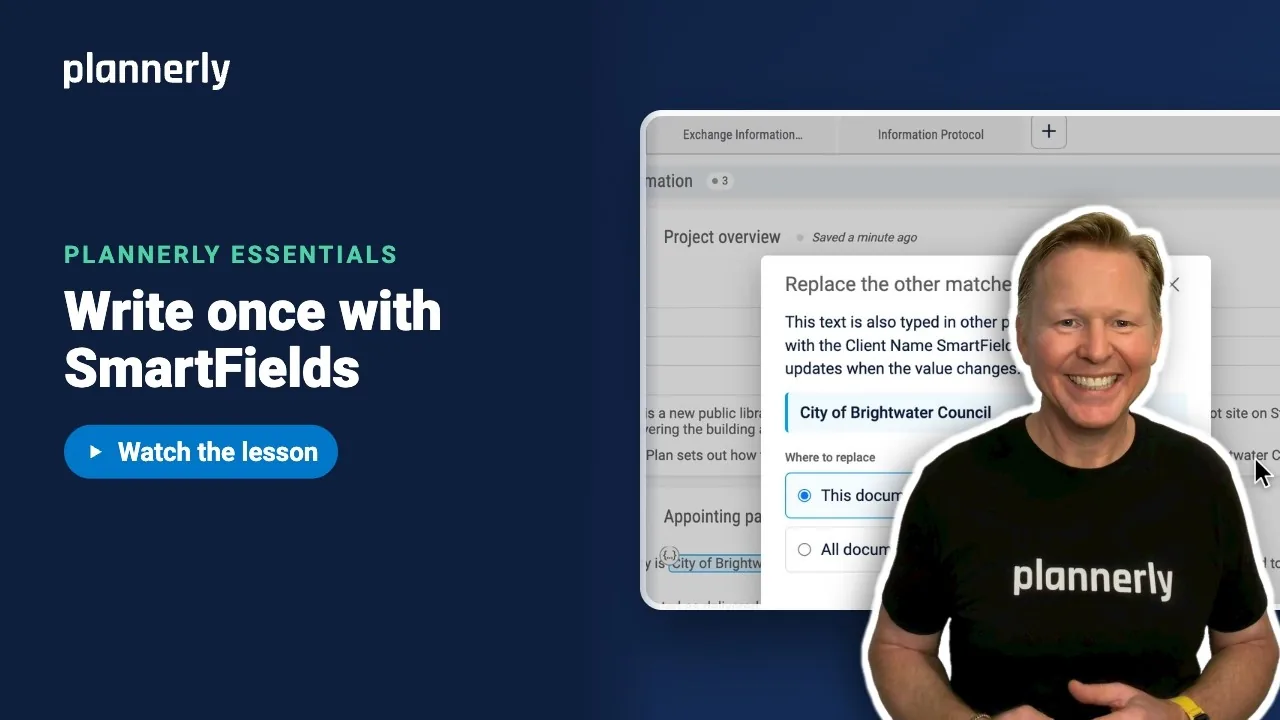
- Plannerly finds the same text elsewhere and asks Replace the other matches too?
- Choose This document or All documents in this project. Each shows how many matches it will change.
- Select the Replace button, which shows the number of matches. A message confirms when it is done.

Change the value once
- Click the SmartField anywhere it appears. You do not need to open the editor.
- Type the new value and select Save.
- For a project detail such as Client Name (this needs the Manage Project Settings permission), Plannerly asks Update Client Name for the whole project? Select OK. The new name is saved in the project's details as well as in your documents.
- For SmartFields you created yourself, Plannerly shows "Updating this SmartField across N sections. You can keep working elsewhere." and carries on in the background.

If it doesn't work
Plannerly did not offer to replace the other matches
The offer only appears when the SmartField's value is exactly the text you selected. If the project's client name is empty, or spelt differently, there is nothing to match. Fix the client name in the project's details, then try again.
The SmartField is blank after I insert it
The project detail it reads from has not been filled in. Add the value in the project's settings, or choose a SmartField that already has a value.
Clicking the SmartField doesn't open a value box
You do not have the permission to change that value. Project details such as Client Name need Manage Project Settings; other SmartFields need Manage SmartFields. The value still shows. Ask a project manager to change it.
Some matches weren't replaced
Sections you cannot edit keep their typed text, and Plannerly tells you how many. Ask the section's owner to run the replacement again.
Common questions
How do I add the client's name to every document in a BIM execution plan?
Select the name in one section, choose Insert SmartField, pick Client Name, then replace the other matches in all documents. Any new document can use the same SmartField.
How do I change the project name in all documents at once?
Click the SmartField in any document, type the new value and save. Every section that uses it updates, in every document in the project.
What happens to sections that are already Published?
Plannerly warns you first, then moves those sections back to Shared so they can be reviewed again before republishing.
Does changing Client Name change my project settings?
Yes. Client Name is a project detail, so Plannerly asks you to confirm and updates it for the whole project.
Related
- SmartFields: write it once, use it in every document - the overview, and Auto-create.
- Insert a SmartField that links to a document name
- Let AI draft and tidy a section - the next lesson.
Take the free Plannerly Essentials course - every lesson is a short video like this one, with a certificate when you finish.






