
TL;DR - A checkable requirement names the property, its group and the value it must have. In the Requirements panel, select Manage, then Create New, pick the group and name from the buildingSMART Data Dictionary, and set a Verification Rule such as "Value is one of" with FD30,FD60.
Who this is for
Project members with the Manage Information Requirements permission. The name suggestions need a dictionary chosen under Settings, Project, Standards, bSDD Information Requirements Dictionary (that needs Manage Project Settings).
Why it matters
"Provide fire rating" leaves every question open: provide it how, as what, in which format? If nobody can say what a pass looks like, nobody checks. A requirement that names the property and the allowed values is one task teams can deliver and you can test.
Create the requirement
- In Scope, select Requirements. You can use the maximise button on the panel for more room.
- Select Manage, then Create New. A new row opens for editing.
- In Group, start typing, for example Pset_Wall. Plannerly suggests matches from the buildingSMART Data Dictionary (bSDD). Pick Property Set: Wall Common. Suggestions start after three characters.
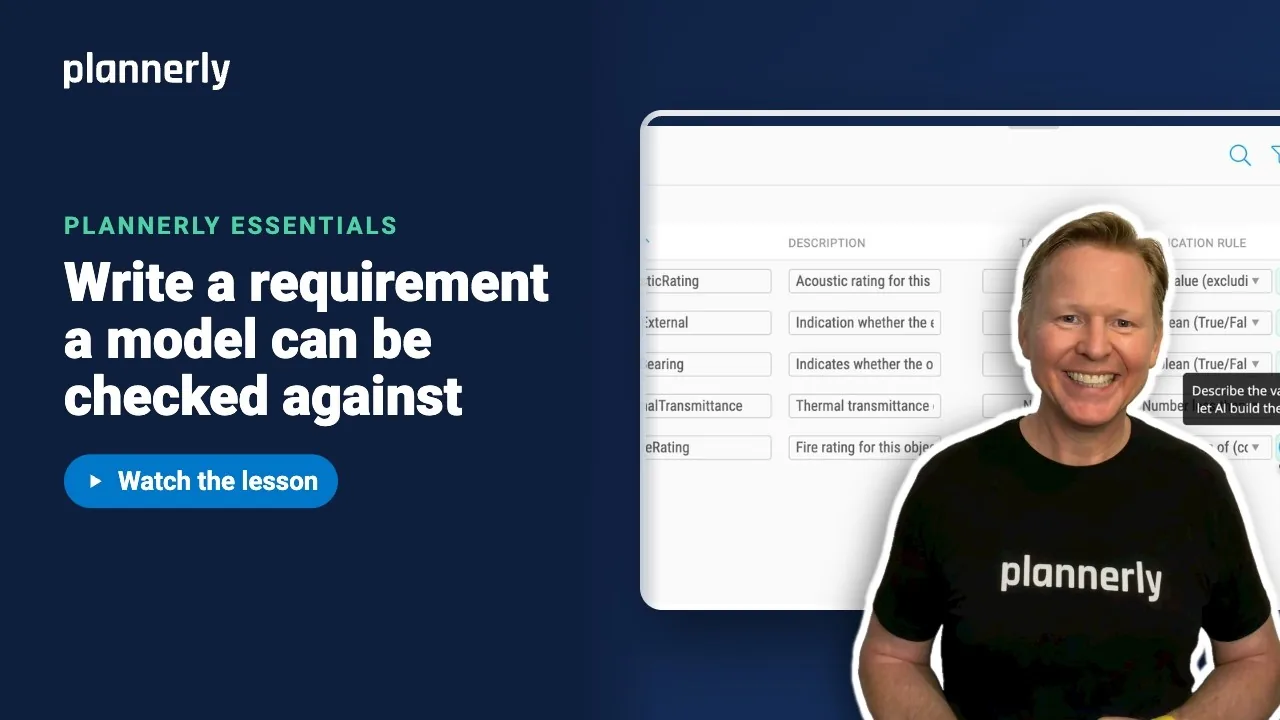
- In Name, type FireRating and pick it from the list. Its definition fills Description, and a bSDD icon appears with the tooltip "Generated from buildingSMART Data Dictionary (bSDD)".

Set the rule
- Open the Verification Rule dropdown and choose Value is one of (comma separated values).
- In Value, type FD30,FD60. A model element now passes only if its FireRating is one of those two.
- Select Save.


Other rule types cover "Any value (excluding empty)", number ranges, dates, text that starts with or contains something, and Boolean true/false. Pick the one that matches how you would judge the property by eye.
Let AI write the rule
- Select the robot button beside the rule (tooltip: "Describe the value you need and let AI build the verification rule.").
- Under "AI prompt to describe your requirements:" type a plain sentence, such as The value must be either FD30 or FD60.
- Select Generate, read the explanation, then select Save.
If it doesn't work
Group and Name suggestions do not appear
Suggestions need at least three characters and a dictionary set in Settings, Project, Standards, bSDD Information Requirements Dictionary. Without Manage Project Settings you can read that section but not change it. If you see "Dictionary search is temporarily unavailable. Please try again.", wait a moment and retype.
Opening the AI rule dialog changed my rule
Selecting the robot button switches the row's rule to Define Rule (Using AI) straight away, and Cancel in the dialog does not switch it back. If you cancel, open the Verification Rule dropdown and choose your original rule again, then re-enter the value.
The AI rule says the account has reached its limit
The AI rule builder uses your account's AI allowance. At the limit you see "This account has reached its limit of AI usages". Choose a rule from the dropdown instead, or upgrade.
Create New or Save is not available
You need the Manage Information Requirements permission. Ask a project manager to update your role.
Common questions
How do I write a good information requirement?
Name the property, its group and the allowed values, and choose a verification rule that a model either passes or fails. For example: group Pset_WallCommon, name FireRating, rule Value is one of, value FD30,FD60.
What is the buildingSMART Data Dictionary (bSDD)?
It is buildingSMART's shared dictionary of property sets, properties and classes with agreed names and definitions. Plannerly suggests names from it as you type, so teams use the same words.
What is the difference between a requirement and a verification rule?
The requirement says which property is needed. The verification rule says what counts as correct for that property, such as one of FD30 or FD60, or any number between two limits.
Can I use a regular expression for the value?
Yes. In the AI rule dialog you can generate one from a sentence, or enter your own RegEx.
Related
- Build your requirements list from a library - start from existing property sets.
- Tell every task team what to deliver, and when - send it to the people who model it.
- bSDD classifications in Scope
- Validate property sets in Verify
- ISO 19650-1:2018 - the concepts behind information requirements.
Take the free Plannerly Essentials course - every lesson is a short video like this one, with a certificate when you finish.






