
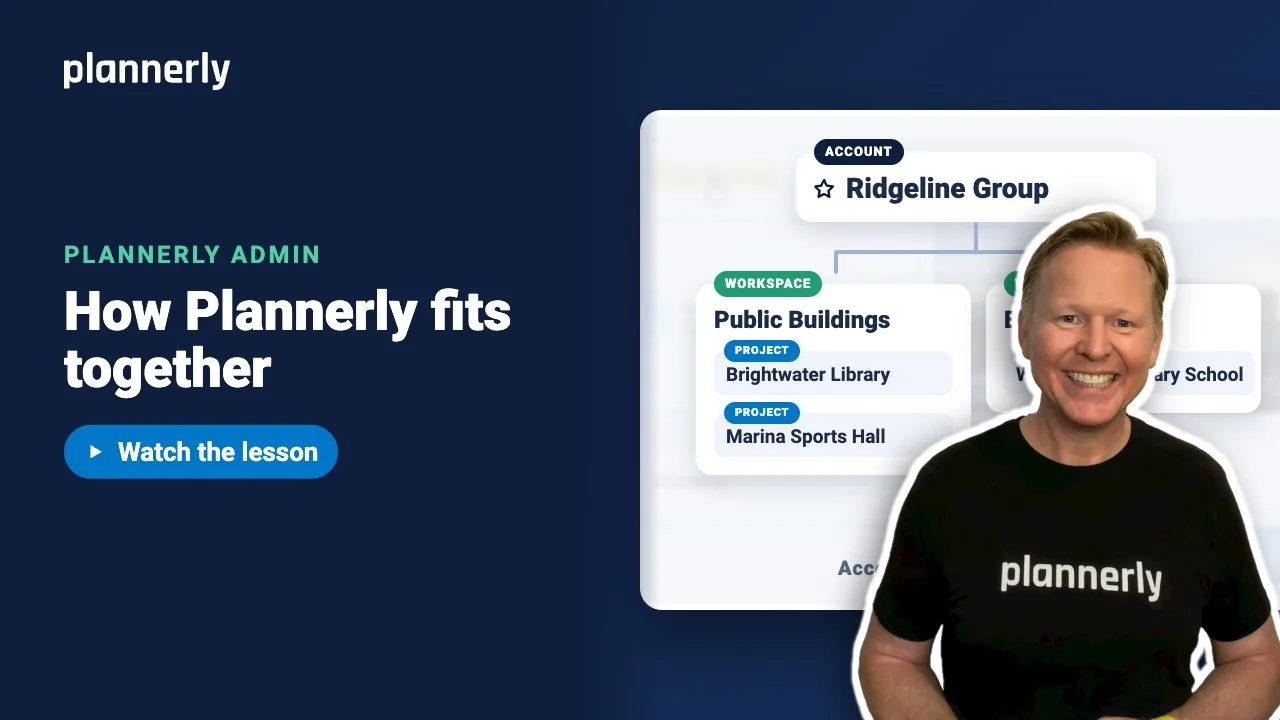
TL;DR - Your account is your company. It holds workspaces, and each workspace holds projects. Standards, people and plan are set once in Account Settings, top right, and every project builds on them.
Who this is for
Anyone who sets Plannerly up for a team. Changing things in Account Settings needs an account admin. Anyone else who tries an admin-only control gets the message "You must be an account administrator to access this feature."
Why it matters
Many teams set tools up one project at a time, repeat the same work on every job, and end up with no clear picture of who can see what. Plannerly works the other way round: you set things up once at the top, and every project follows.
The three levels
- Account - your company, for example Ridgeline Group. Its name and branding show across the app, and its plan decides what everyone on it can use.
- Workspaces - groups of projects inside the account. Use them for an office, a region, or a kind of work, for example Public Buildings and Education.
- Projects - the jobs themselves, for example Brightwater Library. Each project sits in one workspace, and its documents, scope, models and files live inside it.
You see all three on the Projects page: each workspace is a heading with its project cards underneath.

Find Account Settings
- From the Projects page, select Account Settings at the top right.
- You see a list of sections. Select a heading to open it; each section has a short description under its name.
The sections an admin uses most:
- Subscription - your plan, editors, storage and data region. See Pro and Company: everyone on every project.
- Settings - your account name, branding, document standards, templates and fonts. See Make Plannerly look like your company.
- Account Admins - who can control the account. See Add your fellow admins.
- Account members - a default team and workspace access for your people, so they can join projects themselves. See Account members.
- Account notification policy - which kinds of notification your account allows.

Further down you may also see API keys and, on plans that include the Autodesk connection, an Autodesk section.
If it doesn't work
I can't see Account Settings, or a section won't open
Admin controls are for account admins. Ask one of your account admins to make the change, or to add you under Account Admins.
I'm in the wrong account
If you belong to more than one account, check the account name shown in the app before you change anything. Settings apply only to the account you are in.
I can't find a workspace I expected
Workspaces and projects show only to people with access. Your account admins can see everything; for anyone else, ask an admin to check your access.
Common questions
What is the difference between an account, a workspace and a project in Plannerly?
The account is your whole company and holds the plan, branding and admins. A workspace groups projects, for example by office or type of work. A project is one job, with its own documents, scope, models and files.
Should I group projects by office or by type of work?
Either works. Pick the grouping your team already uses to find work. A workspace has its own admins, so group the way you want responsibility to split.
Where do I change my company logo and colors in Plannerly?
In Account Settings, open Settings, then Branding. Only account admins can change it.
Do settings in Account Settings apply to every project?
Account-level choices such as branding, plan and admins apply across the account. Standards you set for documents are offered to projects, which adopt them when they are ready.
Related
- Make Plannerly look like your company - the first thing to set up.
- Group projects into workspaces - create workspaces and choose who runs them.
- Inviting team members to Plannerly - how people are added at the account, workspace and project levels.
- How to create a new workspace in Plannerly - the Help Center guide.
- Permissions: Viewer, Editor, Manager - project roles.
- ISO 19650-1 - the concepts behind managing project information.
Take the free Plannerly Admin course - every lesson is a short video like this one, with a certificate when you finish.






