
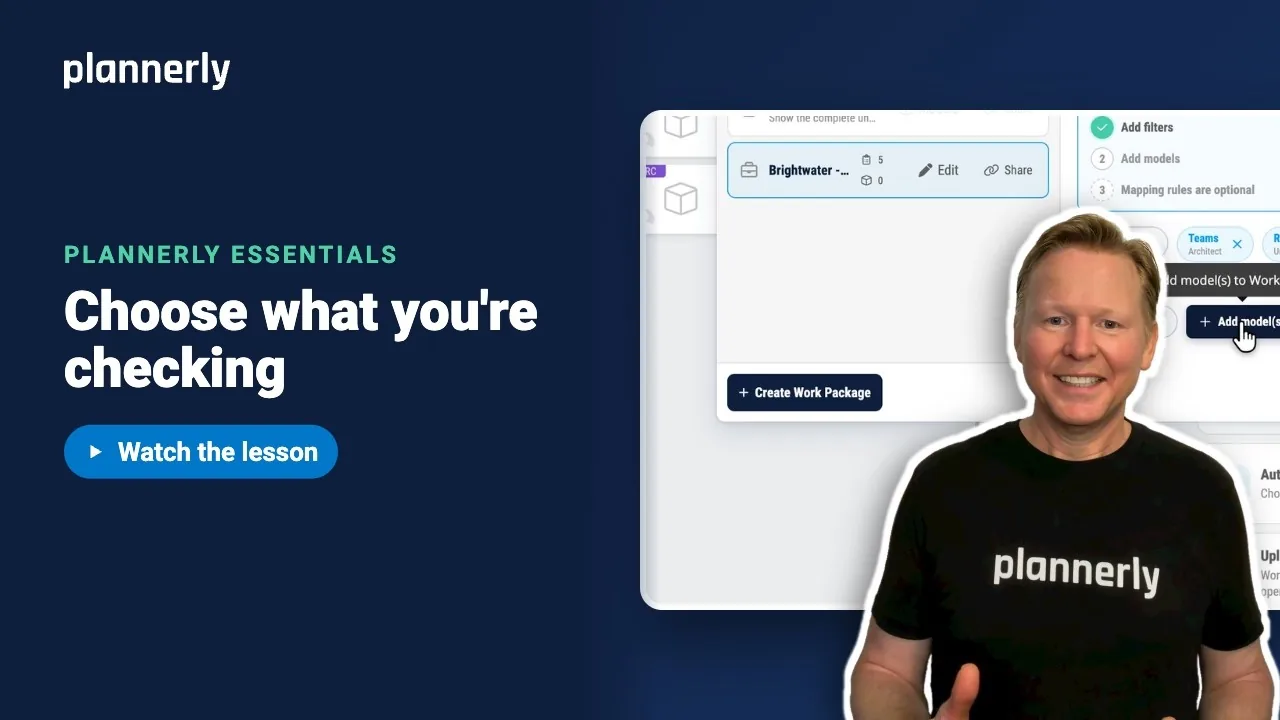
TL;DR - In Verify, open Select Work Package and choose Create Work Package. Name it, add Add Task Filter(s) to narrow the tasks, then Add model(s). The board then shows only those tasks, beside those models.
Who this is for
People with the work package permissions. The default Manager role has them; the default Editor role does not.
Why it matters
Check every task against every model and the real problems hide in the noise. A Work Package is one package of work to check - for example the architect's tasks against the architect's model - so what fails stands out.
Create the Work Package
- In Verify, open the selector in the header. It reads Select Work Package, or Select model(s) when none exist yet.
- Select Create Work Package.
- Type a name in Work Package name, for example Brightwater - Architecture. You can add a description.
- Tick Start with all project tasks, then select Create Work Package. The editor opens with the name in its title.

Narrow it with task filters
- In the editor, select Add Task Filter(s).
- Choose Teams and pick the team whose tasks you want, for example the architects.
- Select the editor title to go back.
The filter lists the teams set up on your project, each with its abbreviation and role. Choices within one filter match any selected value; a task must also match every other filter you add.

Add the model
- Select Add model(s).
- On the row of the model you want, select Add to Work Package. The model opens in the viewer straight away.
- Close the editor.

The board now shows only the architect's tasks, beside the architect's model. Hover over the Work Package name in the header to see how many tasks, models and filters it has. Use Actions to Share, Rename Work Package or Archive it. Rename and Archive need the manage work packages permission, and Archive asks you to confirm.

If it doesn't work
I can't see Create Work Package or the editor
Your role lacks the work package permissions (manage work packages, filters, models or mapping rules). Managers have them by default; Editors do not. Ask a Manager.
The board still shows every task
Either Start with all project tasks was ticked and no filter was added, or a filter is not matching. Open the editor, check Add Task Filter(s), and remember that a task must match every filter.
It says Connect a model first
The project has no model yet. Use the options on the Verify canvas to upload or connect one, then come back to Add model(s).
The team I need is not in the filter
The filter shows the teams set up on the project. Check the task's team in the task itself, or add the team to the project.
Common questions
What is a Work Package in Plannerly?
A saved selection of tasks (chosen by filters) and the models to check them against. Verify shows only that selection, and checks run for it.
Can the same task be in more than one Work Package?
Yes. A Work Package selects tasks by filters, it does not move them, so a task can appear in every package whose filters it meets.
How many models can a Work Package have?
One or several. Add each with Add model(s); they open together in the viewer.
How do I stop using a Work Package?
Use Clear Work Package in the header to see everything again, or Actions then Archive to put it away.
Related
- Turn the model into a scope, already linked - the tasks you will filter.
- Tell Plannerly which elements belong to each task - next: link tasks to elements.
- Work Package filters for dashboard charts
- Permissions: Viewer, Editor, Manager
Take the free Plannerly Essentials course - every lesson is a short video like this one, with a certificate when you finish.






