
TL;DR - Select the failing task's status and move it back to Started for the team that owns it. Then select Actions, Share: Private link is selected, so select Copy link to get a link to the Work Package. Charts shades the whole model by task status.
Who this is for
Moving a task needs edit rights on that task. Sharing and charts are available to people who can see Verify; the Share menu offers a private link or a live public view.
Why it matters
Finding failures is only half the job. The people who can fix them need to see what failed, and the board needs to show who owns each fix so nothing is left waiting.
Send the failed task back to the team
- On the failing task card, select its status pill (the tooltip reads Task status).
- Choose Started. The card moves to that column, where the team that owns the task will see it.

Share a link to the Work Package
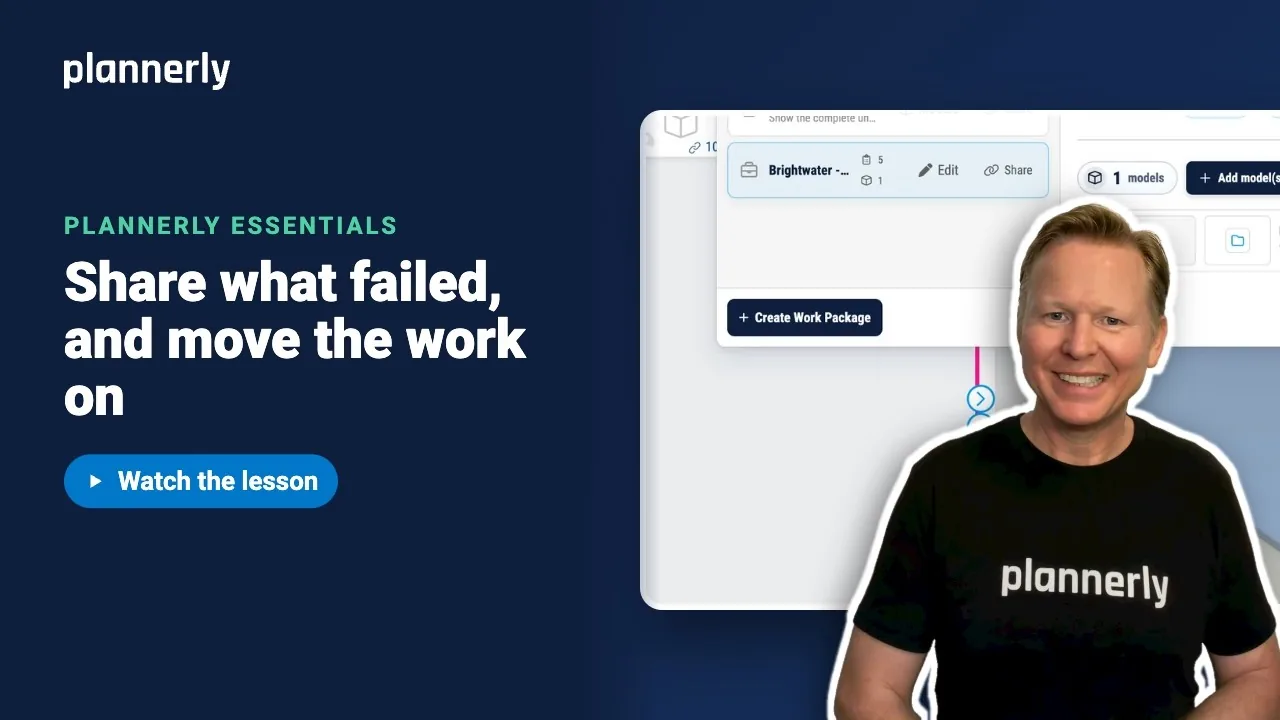
- With the Work Package open in its editor, select the three-dot Actions button, then Share. The Sharing window opens.
- Check that Private link is selected (project members sign in to it with their usual access), then select Copy link.
- Paste the link into your message. The link opens the Work Package.


The window also offers a live public view. A public view does not load the 3D model, so use a private link when people need to see elements in 3D.
Chart the status of the whole model
- In the toolbar, select Charts and choose Model Elements by Task Status.
- The chart counts model elements by the status of the task they belong to, with slices for Unmapped, Verified and one for each status column. The model is shaded to match.

If it doesn't work
I can't move the card to Started
Moving a task needs edit rights on that task. Ask a project Manager, or ask the task's assignee to move it.
I don't see Share under Actions
Open a Work Package first; Share is in the Work Package Actions menu. The toolbar also has a general Share menu.
My colleague opens the link and sees no 3D model
Public views do not load the 3D viewer. Use Private link and make sure the person has access to the project.
Most of the chart is Unmapped
Unmapped counts what has not been tied to a task yet. Add or fix mapping rules so more elements belong to tasks, then check the chart again.
Common questions
How do I share failed model checks with the design team?
Move each failing task back to Started so the owning team sees it, then use Actions, Share, Copy link to send them the Work Package.
How do I copy a link to a Work Package?
Open the Work Package, select Actions, then Share. In the Sharing window, with Private link selected, select Copy link.
Can I get the results into Excel?
Yes. Export has a Scope Data option that creates an Excel file of tasks and requirements and, for a model version, lists each task's mapped element IDs. It needs the permission to manage documents.
What is the difference between a private link and a public view?
The Sharing window offers a private link, or a live public view. A public view does not load the 3D viewer, so use a private link when people need to see the model.
Related
- Run the check and see what's missing - where the failures come from.
- Find any project file in seconds - next: the files themselves.
- Creating dashboards for BIM model checking
- Work Package filters for dashboard charts
- Assigning tasks quickly using the Kanban view
Take the free Plannerly Essentials course - every lesson is a short video like this one, with a certificate when you finish.






