
TL;DR - As a member of the team that owes the file, drag it onto the File Manager list. Plannerly matches it to the request by name. Select Upload, and the request changes from Requested to Delivered on every task that asked for it.
Who this is for
A member of the task team who delivers the file. Your role needs Manage Files even when you upload from a task; without it you cannot upload. Viewers cannot be given it.
Why it matters
Without requests, one file means updating the same requirement on several tasks by hand, in several milestones. A request is matched by name, so you upload once and every task that asked for it is up to date.
Deliver the file in File Manager
- Open File Manager. The file you are delivering should be named exactly as the request, with the same extension.
- Drag the file onto the list. You can drop it anywhere in the list.
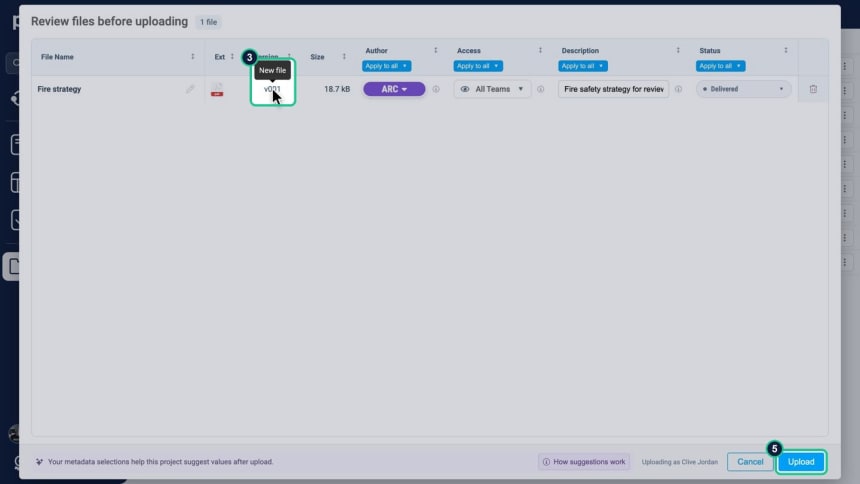
- The Review files before uploading window opens. The file is matched to the request. Hover over the version cell to read its tooltip: a first delivery against a request shows v001 and New file. New revision appears only when a delivered version already exists.
- Check the metadata. Use the column headers to Apply to all if you are uploading several files.
- Select Upload.
Matching ignores capital letters, spaces and punctuation, and it also checks the file's standard name.
See the request flip to Delivered
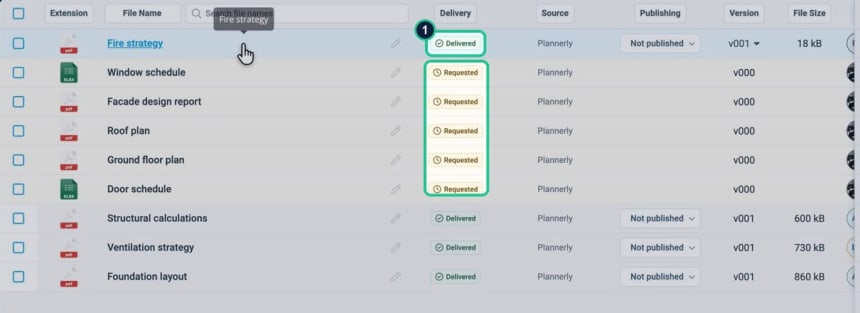
- In the list, the file's Delivery badge changes from Requested to Delivered. If several requirements share the file and only some are matched, it shows Partly delivered.
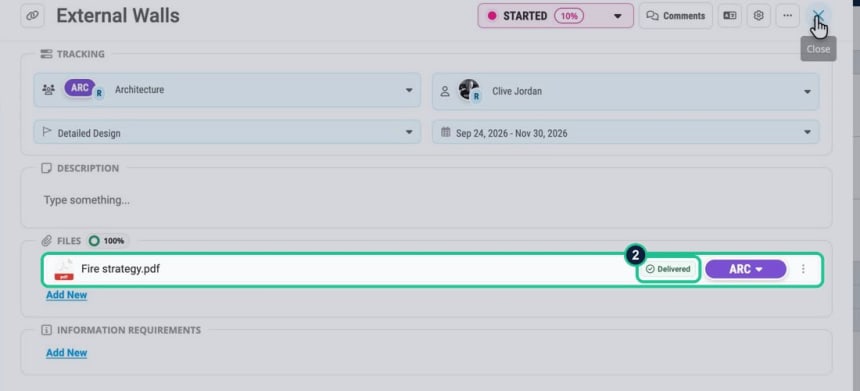
- In Scope, every task that asked for that file now shows it delivered, in every milestone.
Deliver from the task instead
In Scope, drop the file onto the requested file in the task's file field. Plannerly renames it to the request's name, checks the extension and opens the same review window.
Who gets told
People assigned to the task get the notification Requested file uploads ("Alerts when a file is added to or removed from a requested task file you are assigned to"). By default it arrives in Activity and the digest rather than as a pop-up, and each person can change that in their notification settings.
If it doesn't work
The tooltip says New file, not New revision
That is normal for a first delivery. To check the match, look at the list after uploading: the request row should change to Delivered. If a separate new row appeared instead, the name did not match. Rename the file to the request's file name and extension; capital letters and spaces do not matter, but the words do.
"The file you are attempting to upload has a .xlsx extension. A .pdf extension is required."
You dropped the wrong type of file onto a task request. The message names the extension the request needs. Export or convert the file, or deliver the correct one.
I cannot upload at all
Uploads need the Manage Files permission, which is checked on the server. Ask a project manager to add it to your team's permissions.
The upload stops with a message about storage
On the Free plan project files are limited to 100 MB, and the message says so. Remove files you no longer need or upgrade.
Common questions
How does Plannerly know which request my file belongs to?
By name. A file with the same title and extension as a request fills that request, and later uploads of the same name become new revisions. Capital letters, spaces and punctuation are ignored.
Will every task that asked for the file be updated?
Yes. Tasks point at the request by name, so once the file is delivered all of them show it, in every milestone.
Does delivering a file approve the task?
No. The request becomes Delivered. Task approval and the file's review status are separate steps.
Who is notified when a requested file is uploaded?
People assigned to a task that asked for the file get the Requested file uploads notification, by default in Activity and the digest.
Related
- Ask each team for the files you need - how requests are created.
- Review deliveries and see progress - what to do once files arrive.
- Where can I upload coordination files for my team or consultants?
- How to find and manage project files in Plannerly
- Using Plannerly as a Common Data Environment (CDE)
Take the free Plannerly Essentials course - every lesson is a short video like this one, with a certificate when you finish.






