
TL;DR - In Scope, select Export, then IDS Specifications. Filter to what one team needs, check the IFC Version (IFC4 is the default), name the file and select Create. The IDS file appears in File Manager.
Who this is for
Project members with the Manage Docs permission and access to File Manager. IDS export is not tied to a paid plan.
Why it matters
If a model checker works from a different list from the one you agreed, it will cheerfully pass the wrong things. IDS is buildingSMART's open standard, so one agreed list can be read by any tool that supports it.
Create the IDS
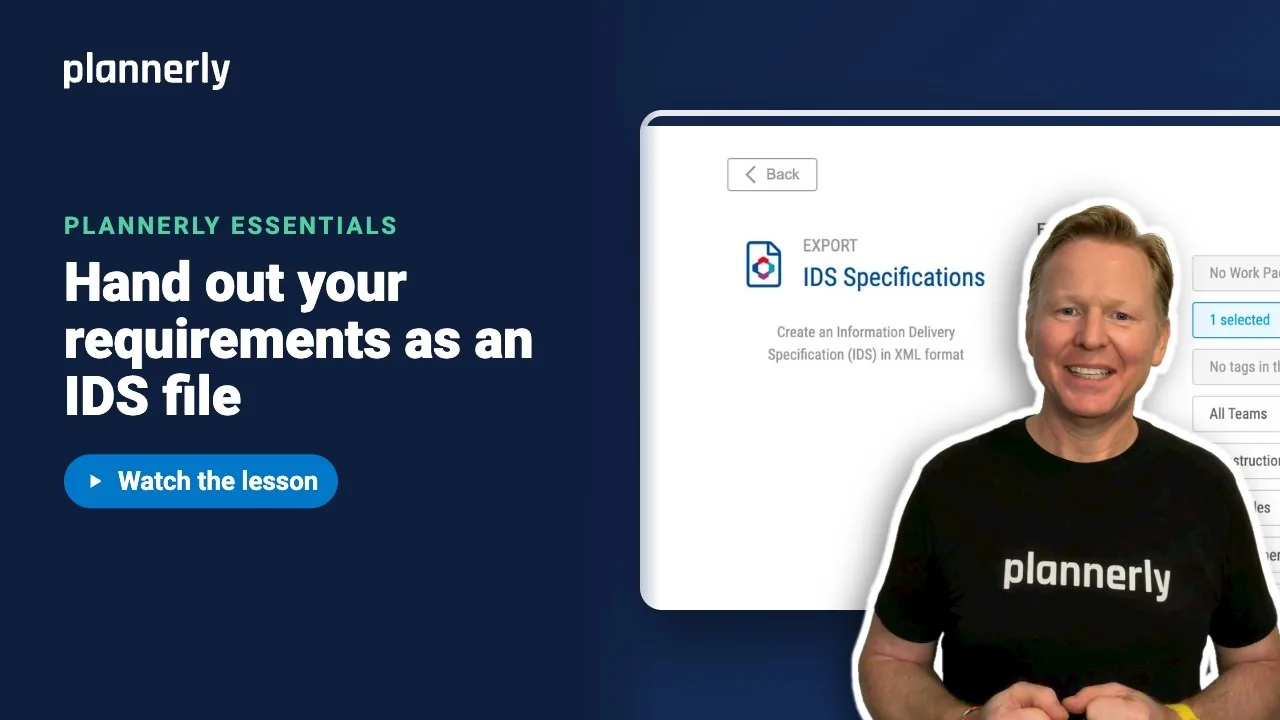
- In Scope, select Export in the toolbar, then IDS Specifications ("Create an Information Delivery Specification (IDS) in XML format"). File Manager opens in IDS export mode.
- Under Filters, narrow the export: a milestone, All Requirement Types, tags, teams, a member or folders. The milestone defaults to the last one.
- Check IFC Version. The options are IFC2X3, IFC4, IFC4.3 and IFC4.4, and it starts on IFC4 because most tools that read IDS expect it. Use the version your checking tool needs.
- Leave Work Packages on None unless you need one: choosing a work package locks the other filters.
- In Enter document title... type a name, for example "Brightwater Library - Construction IDS". You can add a description.
- Select Create.

The IDS file lands in File Manager. Open it from there to download it or share it with the team that will check models.

Other options in the same window: "Export with Classifications" (on by default) and 'Export with "NoPsetDefined" for missing Property Sets/Groups'. Some tools cannot read every IDS option yet, so change these only if your checker needs it.
If it doesn't work
IDS Specifications is missing or the export fails to open
Export needs the Manage Docs permission and access to File Manager. Ask a project manager to update your role.
The export is refused with an error
Requirements that use advanced matching (aliases, shared-parameter GUIDs or name checks) cannot be exported to IDS yet. Remove that matching from the requirement, or export the others by filtering them out.
My filters changed when I picked a work package
Choosing a work package locks the other filters. Set the work package back to None to filter by milestone, type, team or folder.
The other tool rejects my file
Try a different IFC version in the export window. Some IDS-receiving applications cannot yet import every option.
Common questions
How do I export an IDS file from Plannerly?
In Scope select Export, then IDS Specifications. Choose your filters and IFC version, name the file and select Create. The file appears in File Manager.
Which IFC version should I choose for an IDS?
Use the version your checking tool expects. Plannerly starts on IFC4 because most tools that read IDS use it. IFC2X3, IFC4.3 and IFC4.4 are also available.
Can I export only one milestone's requirements?
Yes. Pick the milestone under Filters before you select Create. You can also filter by requirement type, tag, team, member or folder.
Does exporting an IDS need a paid plan?
No. IDS export is available on every plan; you need the Manage Docs permission.
Related
- Bring in an IDS and see exactly what it asks for
- Tell every task team what to deliver, and when
- Import an IDS file into Plannerly (Help Center)
- buildingSMART: Information Delivery Specification (IDS) - the open standard itself.
Take the free Plannerly Essentials course - every lesson is a short video like this one, with a certificate when you finish.






